
On this page
On this page
Jump to a section
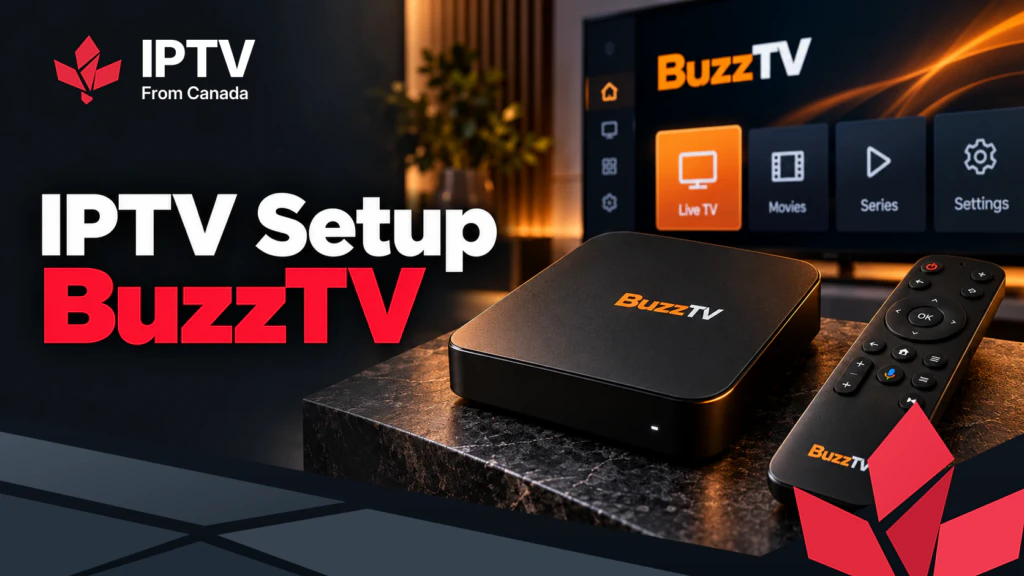
To set up IPTV on a BuzzTV box, open the BuzzTV app that comes installed, press Menu, go to Settings > Server Settings and enter the Xtream Codes login from your IPTV Canada provider, which BuzzTV calls XC API Login. You can use an M3U link or a MAC portal instead if that is what your provider sends. Most people are watching about 15 minutes after plugging the box in. The box ships with no channels: the login comes with your IPTV Subscription.
1. What You Need
- The box on current firmware. Old builds are the most common cause of app crashes and blank guides, so update first (section 3).
- Your login: a server URL, username and password for XC API; or an M3U link with an EPG link; or a portal URL with the box’s MAC registered by your provider. Our post on where to get an IPTV URL explains the three.
- An Ethernet cable. Every BuzzTV box has a port, and a wired box is steadier than Wi-Fi.
- A USB keyboard, optional: server URLs are long and the box accepts most wired keyboards.
BuzzTV changes its lineup often, and the BuzzTV app comes in versions (BuzzTV 5 and BuzzTV 6) that differ by model, so match the menu names below to the closest option on your screen.
2. Which Login to Use
| Login | What you enter | Watch out for |
|---|---|---|
| XC API (Xtream Codes) | Server URL, username, password | http vs https, and the port number after the colon |
| M3U playlist | One playlist URL, plus an EPG URL | The guide stays empty until the EPG URL is filled in |
| MAC server (portal) | A portal URL; your provider registers the box’s MAC | Nothing loads until the provider links the MAC |
XC API is the one to choose when your provider offers it: one set of details loads live channels, the guide and the on-demand library together.
3. Update the Firmware and Open the App
- Connect the box to the TV with HDMI and to the router with Ethernet, then power it on.
- Finish the first run screens: language, time zone (choose your part of Canada, since it drives the guide) and network.
- Open the system settings and find System update or Firmware update; on some models it sits under About. Install any update and let the box restart without unplugging it.
- Open the BuzzTV app from the home screen, or press its button on the remote, and accept the permission prompts.
Only update through the box’s own tool or BuzzTV’s official site. Firmware files from forums can leave the box unusable.
4. Add Your Server
- In the BuzzTV app, press Menu on the remote.
- Go to Settings > Server Settings (called Server Configuration in some versions).
- Choose XC API Login, M3U or MAC server, and fill in the fields for that type (below).
- Save, then close and reopen the app so it loads the new server. The first load takes a minute or two.
XC API Login: type a name such as “Home TV”, then the server URL exactly as your email shows it (with http:// or https:// and the port), then the username and password, which are case sensitive.
M3U: paste the full playlist URL, and your provider’s guide link in the EPG URL field.
MAC server: enter the portal URL and send your provider the MAC address shown in the box’s settings.
The app can hold more than one server on most versions, so you can add a backup server from your provider and switch when needed.
5. Set Up the Guide and Favourites
The guide has its own button on most BuzzTV remotes, and it is one of the best things about these boxes:
- Blank guide: use the EPG refresh option in the app settings and wait a few minutes. With M3U, check the EPG URL is filled in.
- Times an hour off: fix the box’s time zone in the system settings first, then the app’s guide offset only if needed.
- Favourites: highlight a channel and press the options or favourite button. A 20 channel list opens far faster than scrolling thousands of entries.
- Hide channel groups you never watch, such as language packs, so the guide stays quick.
- Recording and catch-up: BuzzTV 6 includes PVR recording, which needs a USB drive or internal storage; catch-up appears only where your provider supports it. Test a short recording before relying on it for a game.
6. Picture, Remote and a Second Box
- Ethernet first; on Wi-Fi, use the 5 GHz band and keep the box out of closed cabinets.
- Resolution: set it to what your TV supports (1080p or 4K). If a channel starts with a flicker or black screen, turn off automatic frame rate switching.
- The remote: BuzzTV remotes have dedicated guide, menu and recent channel buttons, which make the box quick to use day to day.
- A second box: each box streaming at the same time uses one connection on your plan, and a MAC portal must be registered for each box.
7. If the BuzzTV App Will Not Load Your Service
- Test the login elsewhere, such as a phone, to see whether the problem is the box or the account.
- Clear the BuzzTV app’s cache in the box’s Android app settings and restart.
- Install a second player from the store on the box, if your model has one; TiviMate is common, as in our Android TV guide. Never install a modified APK.
- Ask your provider whether a MAC link on your account is blocking an XC API login. It is a common cause on boxes first set up with a portal.
BuzzTV’s Resource Centre has quick start guides for its models.
8. Fix Common BuzzTV Problems
| Problem | What to try |
|---|---|
| “Login failed” or an empty channel list | Re-enter the server URL character by character, confirm the plan is active, restart the app |
| Blank guide | Refresh the EPG, check the time zone, and for M3U the EPG URL |
| Sound out of sync | Change channel and back; if it persists, set audio output to PCM |
| Some channels will not play | Switch between hardware and software decoding if the app offers it |
| App crashes | Clear the app cache, then install any firmware update |
For buffering, wire the box and restart it and the router. If it continues, our checklist for IPTV that stops working tells you within five minutes whether the problem is the box, your network or the service. If the details are right and the login still fails, IPTV Support can check your account from their side.
Frequently Asked Questions
Do BuzzTV boxes come with channels?
No. A BuzzTV box is a player with an IPTV app built in. The channels come from a separate subscription that you add in Server Settings.
Can I use XC API and M3U on the same box?
Yes, on most app versions. Add each as its own server and switch between them in Server Settings.
Will a factory reset remove my server?
Yes. Save the server URL, username and password in a note on your phone, and adding them back takes two minutes. A MAC portal stays registered, since the MAC does not change.
Is BuzzTV better than a Fire TV Stick for IPTV?
It is built for it: a dedicated guide button, typed channel numbers and an IPTV app ready out of the box. A Firestick costs less and runs more streaming apps.
How is BuzzTV different from Formuler or MAG?
All three are IPTV boxes. BuzzTV and Formuler take Xtream Codes, M3U and portals in their own apps; a MAG box loads portals only.
Is a BuzzTV box legal in Canada?
Yes. It is ordinary hardware. Whether the channels are licensed depends on your provider, as our post on whether IPTV is legal explains. Buy the box on its own rather than with “channels included” from a seller who will not say where they come from.
Can I use a VPN on a BuzzTV box?
On Android based models, yes, as an app. Most homes don’t need one; our post on whether you need a VPN for IPTV explains when it helps.
Conclusion
A BuzzTV box turns IPTV setup into a short job: update the firmware, add your server in the BuzzTV app, and let the guide load. Set the time zone during the first run, before you open the app, because a wrong zone is the reason behind most guides that look broken on these boxes. If you are still choosing a service, an IPTV free trial gives you server details to test the box with.