
On this page
On this page
Jump to a section
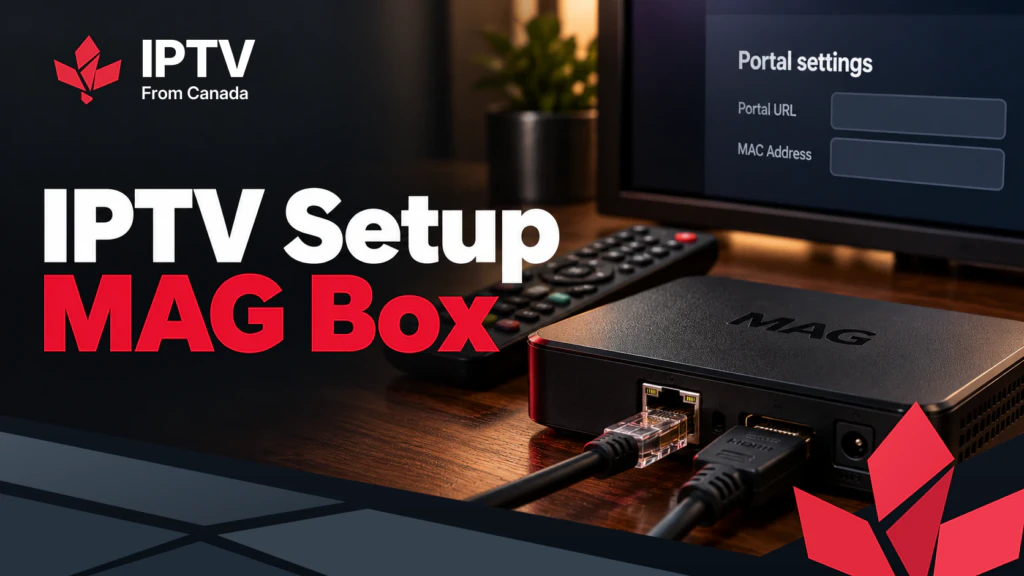
A MAG box IPTV setup takes four steps: send the MAC address printed under the box to your IPTV Canada provider, update the firmware and set the time zone, enter the portal URL they give you under System settings > Servers, and reboot. There is no app to install and no username to type; the box loads your provider’s portal by itself at every start. Ask for a MAG portal when you order your IPTV Subscription, because a MAG cannot use the Xtream Codes logins that apps use. The whole job takes about 15 minutes once the MAC is registered.
1. What You Need
- The MAC address. It is on the label under the box and in System settings > Device info. On Infomir boxes it usually starts with 00:1A:79. Photograph it: 0 and O, 8 and B, 1 and l are easy to confuse.
- A portal URL from your provider, created for your MAC. Our post on where to get an IPTV URL explains how a portal differs from the other login types.
- An Ethernet cable. Most MAG models are wired only. The w3 models and the MAG555 have Wi-Fi, but a cable is steadier.
- A USB keyboard, optional but helpful: portal URLs are long and the remote is slow for typing.
Infomir’s current boxes, the MAG544, MAG540 and MAG555, all support 4K and HEVC. Older models such as the MAG524, MAG520, MAG322 and MAG254 follow the same steps, with slightly different menu wording.
2. Step 1: Register the MAC Address
Send the MAC address to your provider through their account area or support, and wait for confirmation that it has been added. Do this first: the portal recognizes the box by its MAC, so a box that is not registered shows an error instead of your channels.
3. Step 2: Update the Firmware and Set the Time
- Connect HDMI to the TV and Ethernet to the router, then plug in the power.
- When the box has started, open Settings > System settings. On many remotes, the Setup button goes straight there.
- Open Software update, choose the HTTP update method, and install any update offered. Do not switch the box off while it installs and restarts.
- Open Advanced settings > Time zone and choose your part of Canada.
- Open Servers > General and check the NTP server field. Leave the default, or use the one your provider recommends.
The time matters more on a MAG than on any other device: the portal reads its clock from the box, and a wrong time zone shifts the whole TV guide. Infomir’s system settings documentation describes every menu. Update only from the box’s own menu or Infomir’s website; unofficial firmware can leave the box unusable.
4. Step 3: Enter the Portal URL
- Open System settings > Servers > Portals.
- In Portal 1 name, type a label such as “IPTV”.
- In Portal 1 URL, type the address exactly as your provider gave it, including
http://orhttps://, any port number and the ending path. MAG portal addresses often end in/c/. - Leave Portal 2 empty unless your provider gave you a backup address.
- Press OK to save.
The three typing errors behind most failed loads: a missing slash at the end, a lowercase L instead of the number 1, and http where the email says https.
5. Step 4: Reboot and Open the Portal
Go back to System settings and choose Reboot. After the restart the box shows a loading screen, then your provider’s portal. The first load takes longer while the channel list and guide download; after that, the box opens straight into the portal every time.
6. Use the Guide, Favourites and Categories
Everything on screen now comes from the portal, so the guide and favourites live inside it, not in the MAG settings:
- TV guide: open the live TV section and the guide view. Many MAG remotes have an EPG or Info button.
- Favourites: highlight a channel and press the favourite button shown on screen, often a star or a colour key. Build a short list on day one.
- Categories: jump between genre or country groups instead of paging through everything.
- Live TV and on demand are separate tiles on the portal’s home screen.
- Catch-up and recording appear only if your provider’s portal offers them.
If programmes show an hour early or late, fix the time zone and NTP server from step 2 before touching anything in the portal.
7. Picture, Connection and a Second Box
- Resolution: in the video settings, choose a resolution your TV supports, and 4K only on a 4K model with a 4K TV.
- Flicker or black screens on some channels: turn off automatic frame rate matching in the video settings.
- Wi-Fi models: use the 5 GHz band and keep the router close.
- Speed: plan on about 10 Mbps for each HD stream and 25 Mbps for 4K.
- A second box: each MAG needs its own MAC registered, and each box streaming at the same time uses one connection on your plan.
8. Fix Common MAG Box Problems
| Message or symptom | Likely cause | Fix |
|---|---|---|
| Stuck on “Loading portal” | Wrong URL, no network or server down | Check the cable, re-enter the URL, reboot |
| “Portal not found” | Typo or missing path in the URL | Compare it with your email character by character |
| Box blocked or not authorized | MAC not registered, typed wrong, or plan expired | Send IPTV Support a photo of the label |
| Guide blank or hours off | Time zone or NTP server | Fix both in System settings, then reboot |
| Sound out of sync or missing | Audio output mode | Switch between PCM and pass-through in the audio settings |
| Freezes after an update | Settings conflict | Reset to factory defaults, then enter the portal again |
For buffering, put the box on Ethernet and restart it and the router. If it continues, our checklist for IPTV that stops working tells you within five minutes whether the problem is the box, your network or the service.
Frequently Asked Questions
Can I use an M3U link or Xtream Codes on a MAG box?
Not properly. Some firmware can open a playlist, but without a usable guide. Ask for a MAG portal, or use the Xtream login on a Formuler or BuzzTV box, or a streaming stick.
Does the MAC address change after a factory reset?
No. The MAC is fixed in the hardware, so after a reset you only enter the portal URL again; your provider does not need to register anything new.
Can I use one portal on two MAG boxes?
Only if your provider registers both MAC addresses. Each box counts as one connection when it streams.
Do I need to update the firmware?
Yes, before you enter the portal. New firmware fixes playback and portal problems, and portals are tested against current versions.
Can I add apps like YouTube or Netflix to a MAG box?
A MAG runs Infomir’s portal software, not an app store, so what it offers beyond your provider’s portal depends on the model. For streaming apps, a Fire TV Stick or Google TV device on another HDMI port is simpler.
Is a MAG box legal in Canada?
Yes. The box is ordinary hardware. Whether the channels are licensed depends on the portal you connect to, as our post on whether IPTV is legal explains. Be wary of boxes sold with a portal already entered.
Can I use a VPN on a MAG box?
Not as an app. A VPN for a MAG runs on your router; our post on whether you need a VPN for IPTV explains when it is worth it.
Conclusion
A MAG box works smoothly once three things line up: current firmware, a registered MAC and a portal URL typed exactly right. Write the MAC and the portal URL on a card and keep it in the box’s packaging, because after a reset or a move those two lines are all you need to be watching again in five minutes. If you have not chosen a service yet, an IPTV free trial can give you a portal to test the box with once your MAC is registered.