
On this page
On this page
Jump to a section
To watch IPTV on Roku, add the IPTVplayerio app from the Roku Channel Store, then send it the playlist from your IPTV Canada provider by entering the app’s MAC address on its website. If you would rather not pay the app’s activation fee, AirPlay or mirror the channel from your phone, or plug a streaming stick into a spare HDMI port, which is the best option for watching every day. All three use the same login from the welcome email for your IPTV Subscription, and none of them needs a hack or a code.
1. What Works on Roku Now
- Roku OS is its own system. It cannot install Android apps or APK files, so the players used on a Firestick are not an option.
- Private channel codes are gone. Roku ended non-certified channels, so anyone selling a “Roku IPTV code” is selling nothing.
- The Channel Store now has IPTV players. In Canada it lists IPTVplayerio, a player that loads your own playlist, as well as a listing named IPTV Smarters Pro. Both play only what your login gives them.
2. Choose Your Method
| Method | What you need | Cost | Best for |
|---|---|---|---|
| IPTVplayerio app | A Roku and a phone for the upload | One time or yearly activation fee for the app | Keeping everything on the Roku remote |
| AirPlay or screen mirroring | An iPhone, iPad, Android phone or Windows PC | Free | Trying a service, or the odd game |
| Streaming device on HDMI | A Fire TV Stick, Google TV device or Apple TV | The device | Watching every day with a full TV guide |
The app’s activation fee goes to its developer, not to your provider. At the time of writing, the IPTVplayerio listing offers lifetime access for $19.99 or a year for $11.99; check the listing before you pay, since terms change.
3. Method 1: The IPTVplayerio App
- Press Home on the Roku remote and open the Streaming Store (called Streaming Channels on older Roku software).
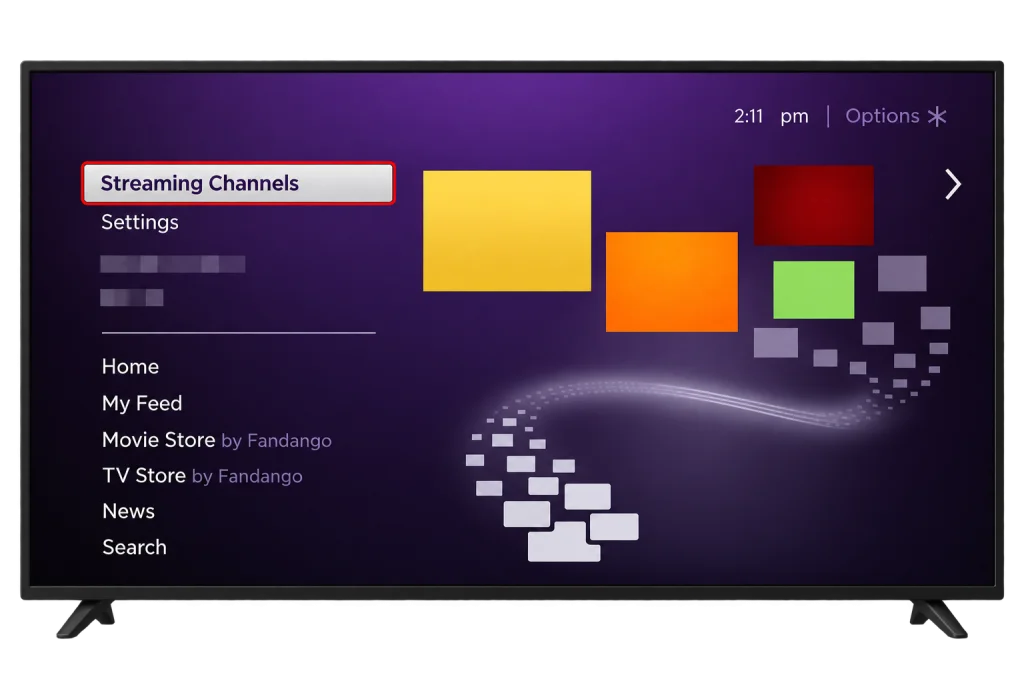
- Search for IPTVplayerio and check that the developer is X-PLAYERS.
- Select Add app, then open IPTVplayerio.
- Write down the MAC address the app shows on its start screen.
- On your phone or computer, open the IPTVplayerio upload page and choose URL.
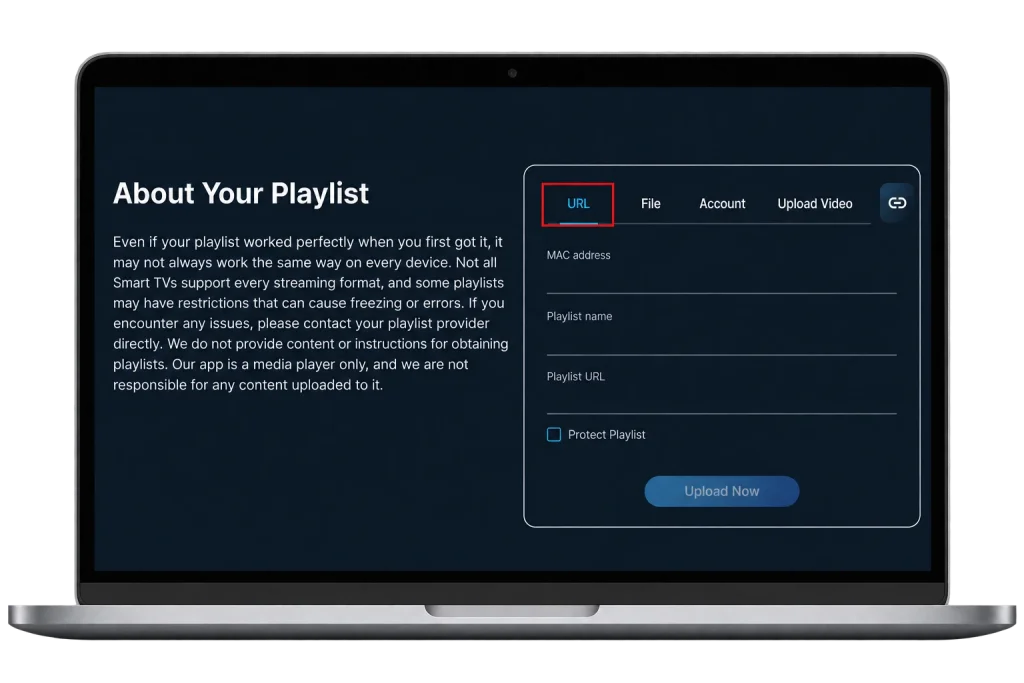
- Enter the MAC address, a playlist name such as “Home”, and your M3U link, then select Upload now. Our post on where to get an IPTV URL shows how to build the M3U link from Xtream Codes details if your email only has those.
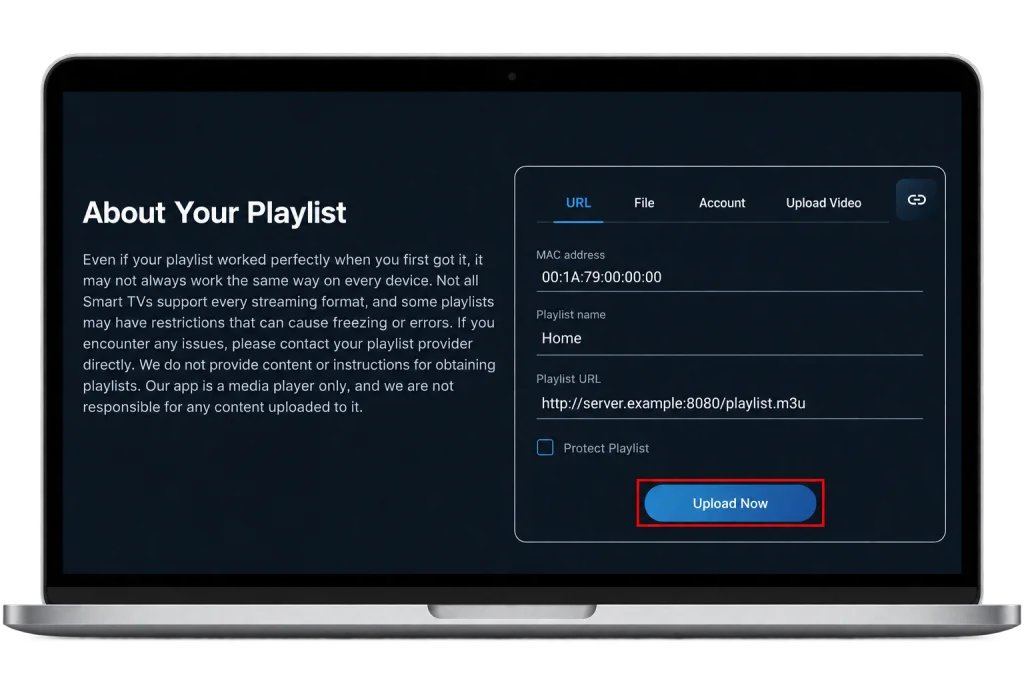
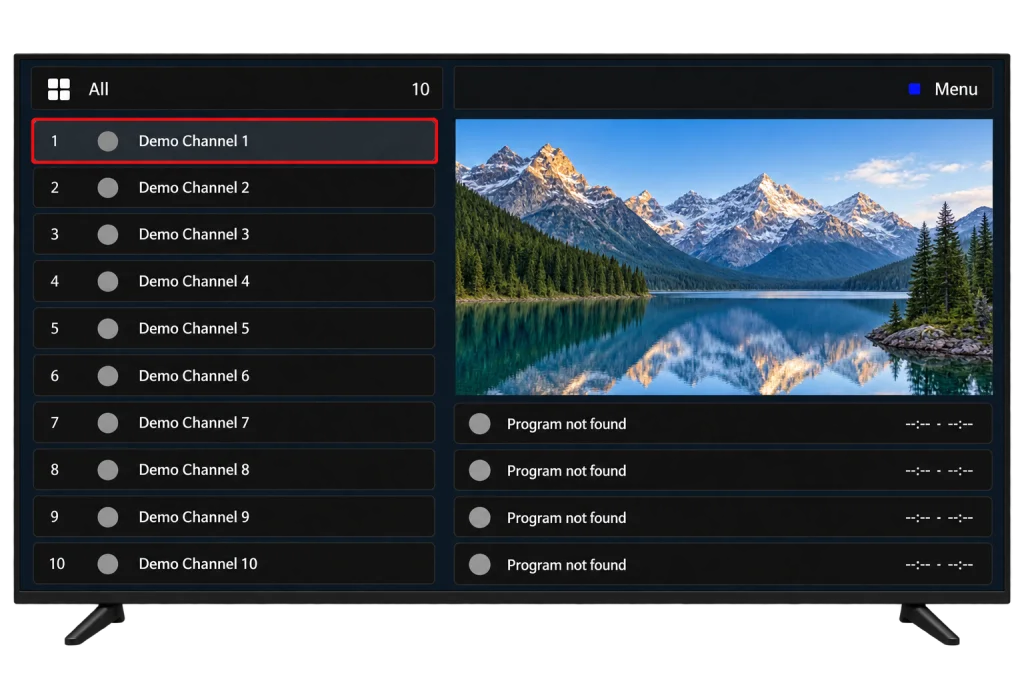
- Go back to the Roku and reopen IPTVplayerio. Your channels, films and series load, with a TV guide.
The upload page can also protect the playlist with a PIN, which stops anyone who knows your MAC address from changing it. Pay the activation only through the app or its official website.
4. Method 2: AirPlay or Mirroring From Your Phone
Both devices must be on the same Wi-Fi network, and the player runs on the phone.
From an iPhone, iPad or Mac
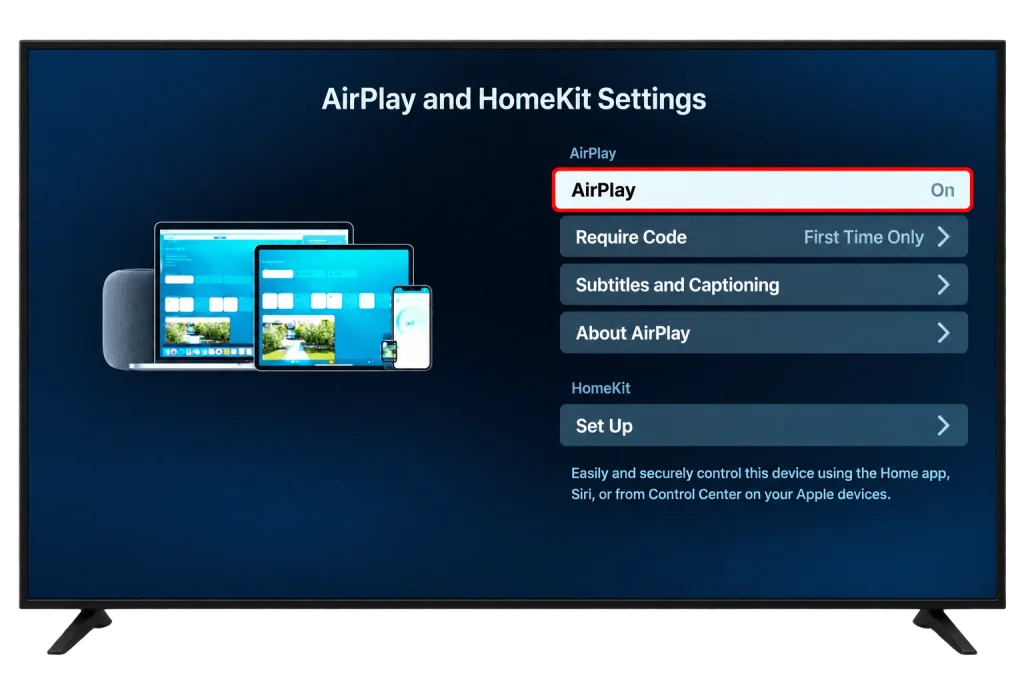
- On the Roku, open Settings > Apple AirPlay and HomeKit and check that AirPlay is on. Roku lists the compatible models on its AirPlay support page.
- Install IPTVX from the App Store and sign in, as in our Apple TV, iPhone and iPad guide.
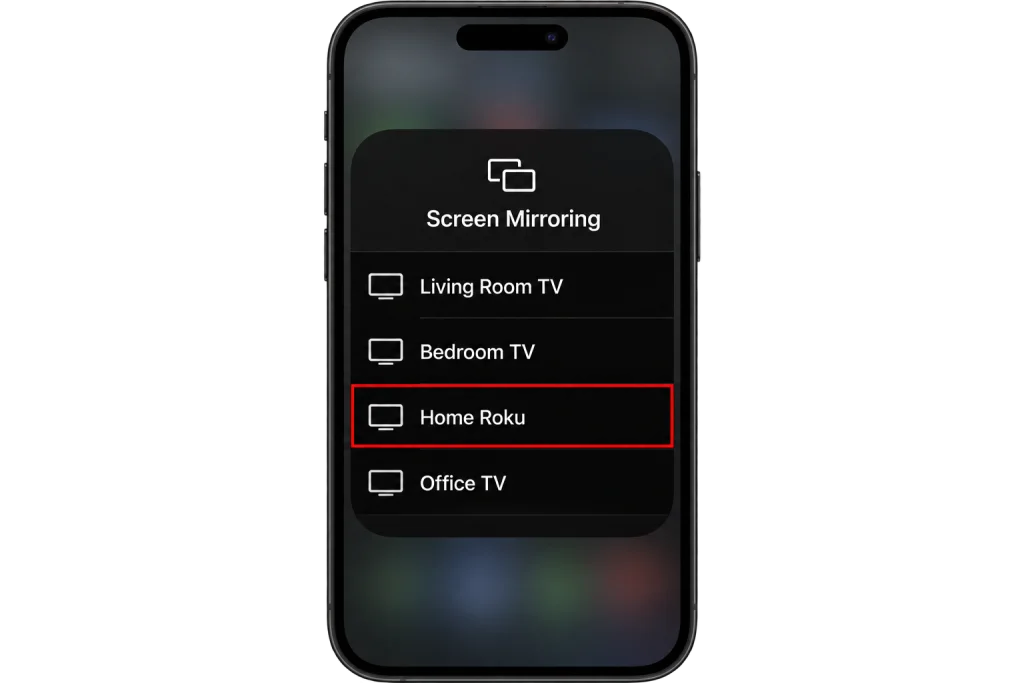
- Start a channel and tap the AirPlay icon in the player, or open Control Centre > Screen Mirroring and choose the Roku. Enter the code the TV shows if asked.
From an Android phone or a Windows PC
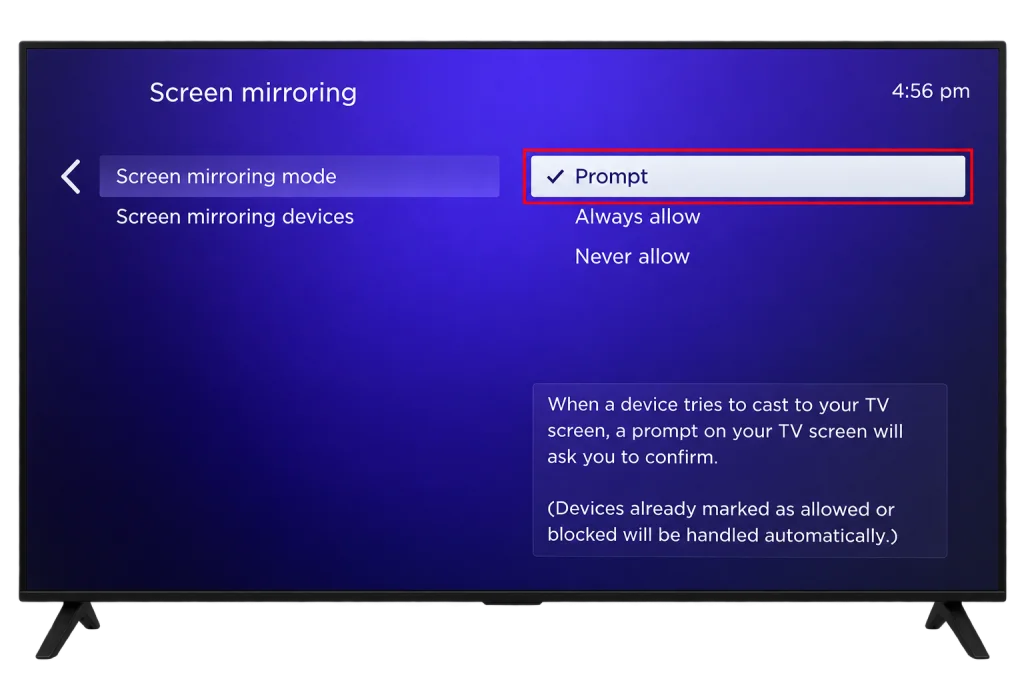
- On the Roku, open Settings > System > Screen mirroring and set the mode to Prompt or Always allow, as Roku’s screen mirroring guide explains.
- On Android, pull down Quick Settings and tap Smart View, Screen cast or Cast, depending on the brand. On Windows, press Windows + K; our Windows guide covers casting from a PC.
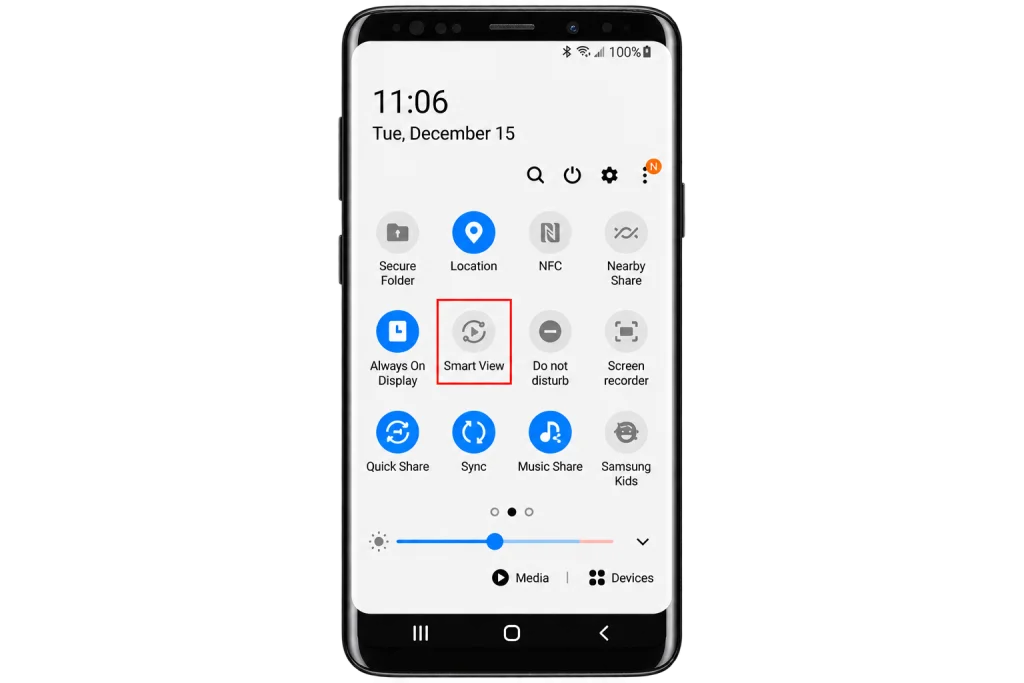
- Choose the Roku and select Allow on the TV, then play the channel full screen.
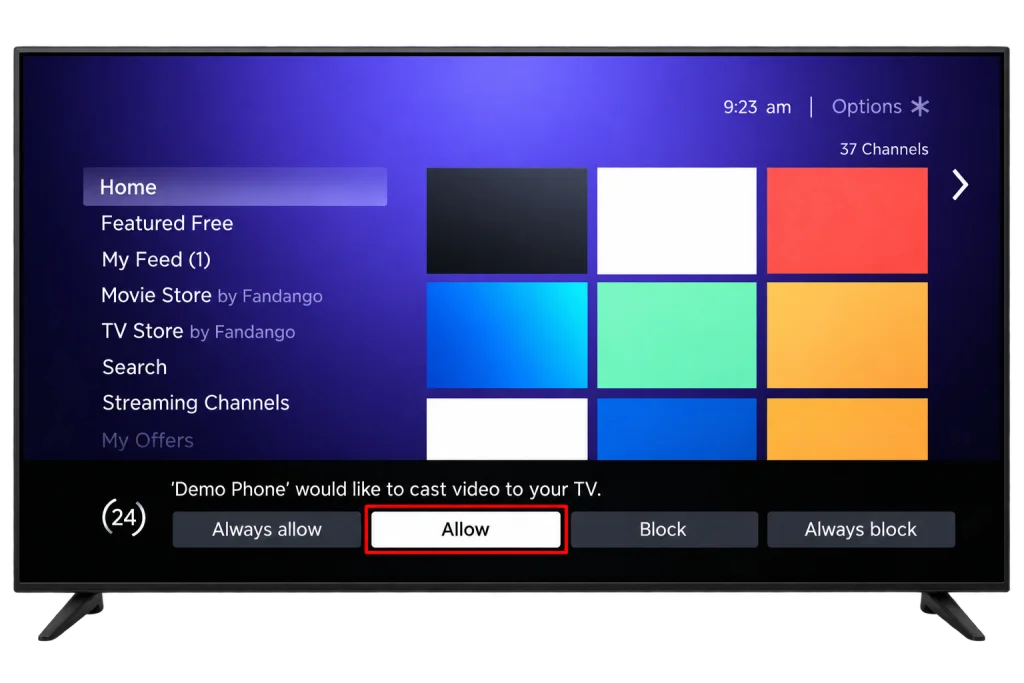
If your phone has no screen cast option, it cannot mirror to a Roku; use AirPlay from an Apple device or Method 3 instead. Mirroring ties up the phone and looks softer than a player on the TV, so keep it for testing.
5. Method 3: A Streaming Device on HDMI
For everyday viewing, a streaming device on a spare HDMI port beats both other methods: a full player, a proper guide and a remote, with nothing to activate. The same setup works beside a games console: see our PlayStation and Xbox guide.
- Plug the stick or box into a free HDMI port and power it from a wall outlet, since TV USB ports often cannot power a 4K stick.
- On a Roku TV, press Home and select the new HDMI input tile. You can rename it “IPTV”.
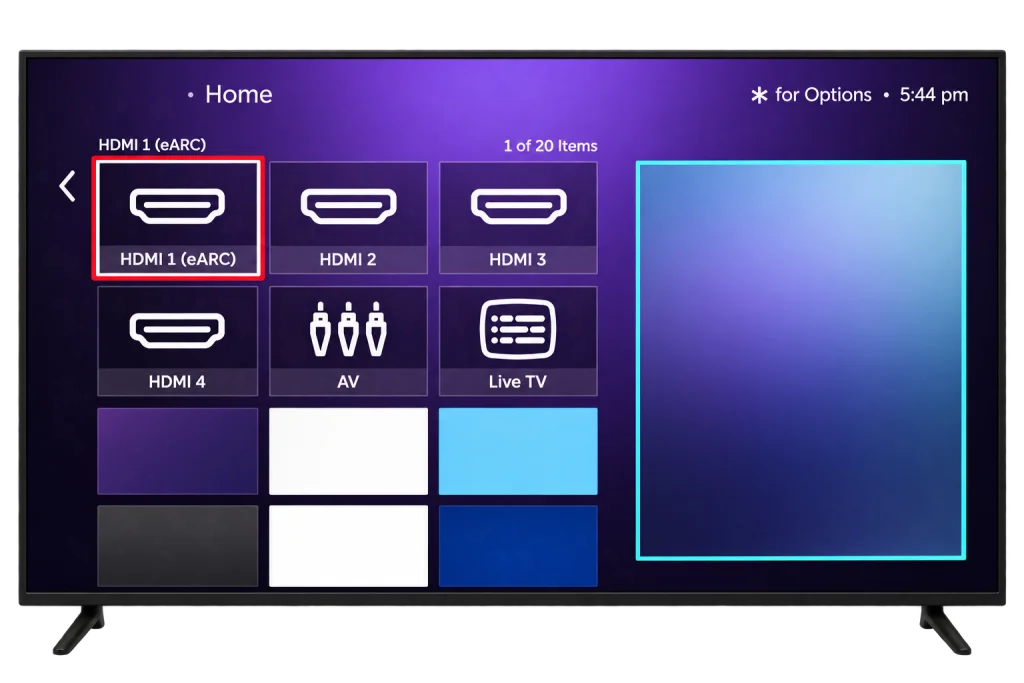
- Set up the player with our guide for a Firestick or for Android TV and Google TV. Our IPTV Guide covers the rest.
6. Guide, Favourites and Picture
- Guide: IPTVplayerio has a built in TV guide. If it stays empty, check your provider’s EPG link on the upload page.
- Favourites: build a short list in whichever player you use; it matters most when you navigate with a phone or a Roku remote.
- Wrong programme times: adjust the guide offset in the player.
- Picture: on a Roku TV, press the star button during playback to choose a picture mode; Movie looks more natural than Vivid.
- Connection: plan on about 10 Mbps per HD stream and 25 Mbps for 4K, and use Ethernet or 5 GHz Wi-Fi where you can. Mirroring needs more headroom, because the phone receives the stream and sends it again over the same Wi-Fi.
7. Fix Common Roku Problems
IPTVplayerio shows no channels
Reopen the app after uploading. Then check the MAC address on the upload page matches the app exactly, and that the M3U link is complete. The upload page’s help section covers what to do if the app’s MAC address changes.
Buffering or freezing
Restart the router and the Roku from Settings > System > Power > System restart, then move the Roku or the streaming device to Ethernet or 5 GHz Wi-Fi. If it continues, our checklist for IPTV that stops working tells you within five minutes whether the problem is the device, your network or the service.
The Roku is not listed when mirroring
Check that screen mirroring mode is not set to Never allow, that the phone and the Roku share one Wi-Fi network, and that no earlier attempt was set to Always block in the Roku’s screen mirroring settings.
Login fails everywhere
Retype the server address, username and password, or copy the M3U link again from your email. If it still fails on every device, IPTV Support can confirm your account from their side.
Frequently Asked Questions
Is there an official IPTV Smarters Pro app on Roku?
A listing called IPTV Smarters Pro appears in the Canadian Roku Channel Store, published by Smarters Tech LLC, with mixed ratings. We recommend IPTVplayerio, whose listing clearly describes what it does and what it costs.
Do I pay for IPTVplayerio and my IPTV plan separately?
Yes. The app’s activation goes to its developer and only unlocks the player; your channels still come from your IPTV plan.
Can I use IPTVplayerio on two Rokus?
Each Roku shows its own MAC address, so each one is set up, and usually activated, separately.
Does IPTV work on a Roku Express?
The IPTVplayerio app and HDMI streaming devices work with any Roku the app supports. AirPlay and mirroring depend on the model, so check Roku’s compatibility list first.
Can I use a VPN on Roku?
Not as an app: Roku has no VPN apps. Put the VPN on your router or on the streaming device instead, as our post on whether you need a VPN for IPTV explains.
Is it legal to watch IPTV on a Roku?
The Roku and the players in its Channel Store are legal. Whether the channels are licensed depends on the provider behind your login, as our post on whether IPTV is legal explains.
Why did my Roku IPTV channel code stop working?
Roku ended non-certified channels, so those codes no longer install anything. Use the Channel Store or one of the other two methods.
Conclusion
Roku used to be the hardest TV for IPTV; today the IPTVplayerio app keeps everything on the Roku remote, and a streaming stick on HDMI remains the best choice if you watch every night. Before you pay any activation, test the service by AirPlaying or mirroring a channel from your phone for an evening, since that costs nothing and tells you whether your Wi-Fi and the service hold up. If you are still choosing a service, an IPTV free trial gives you a login to run that test.