
On this page
On this page
Jump to a section
To watch IPTV on Windows, install Kodi from kodi.tv or the Microsoft Store, turn on its free PVR IPTV Simple Client add-on, and paste in the M3U link and guide link from your IPTV Canada provider. You get live channels in a full TV guide in about 15 minutes. VLC, which many PCs already have, plays the same link in seconds and is the quickest way to check it works. Both links come in the welcome email for your IPTV Subscription, and a PC can also feed your living room TV over HDMI.
1. What You Need
- A PC or laptop on Windows 10 or 11, with Windows Update and the graphics driver up to date. An old graphics driver causes more stutter than slow internet.
- Your M3U link and EPG (guide) link. If your email only has Xtream Codes details, our post on where to get an IPTV URL shows how to build the M3U link from them in a minute.
- About 10 Mbps per HD stream and 25 Mbps for 4K. A desktop next to the router belongs on a cable; a laptop on 5 GHz Wi-Fi does fine for HD.
- Microsoft Defender and SmartScreen left on. A legitimate player never asks you to turn them off.
2. Which Player to Use
| Player | Where to get it | Guide | Best for |
|---|---|---|---|
| Kodi with PVR IPTV Simple Client | kodi.tv or the Microsoft Store | Yes, a full TV grid | Daily viewing; our pick |
| VLC media player | videolan.org | No | Testing a link in seconds |
| Other IPTV apps in the Microsoft Store | Microsoft Store | Varies | Only from a publisher you can check |
The Microsoft Store lists many IPTV players with similar names. If you try one, check the publisher, the number of reviews and the date of the last update first. IPTV Smarters Pro’s Windows version was downloaded from its developer’s website, which has been offline, so we don’t recommend it until that site returns. Our best free IPTV apps post compares players for every device.
3. Install Kodi
- Download Kodi from the official Kodi Windows page, or open the Microsoft Store, search for Kodi and check that the publisher is the Kodi Foundation.
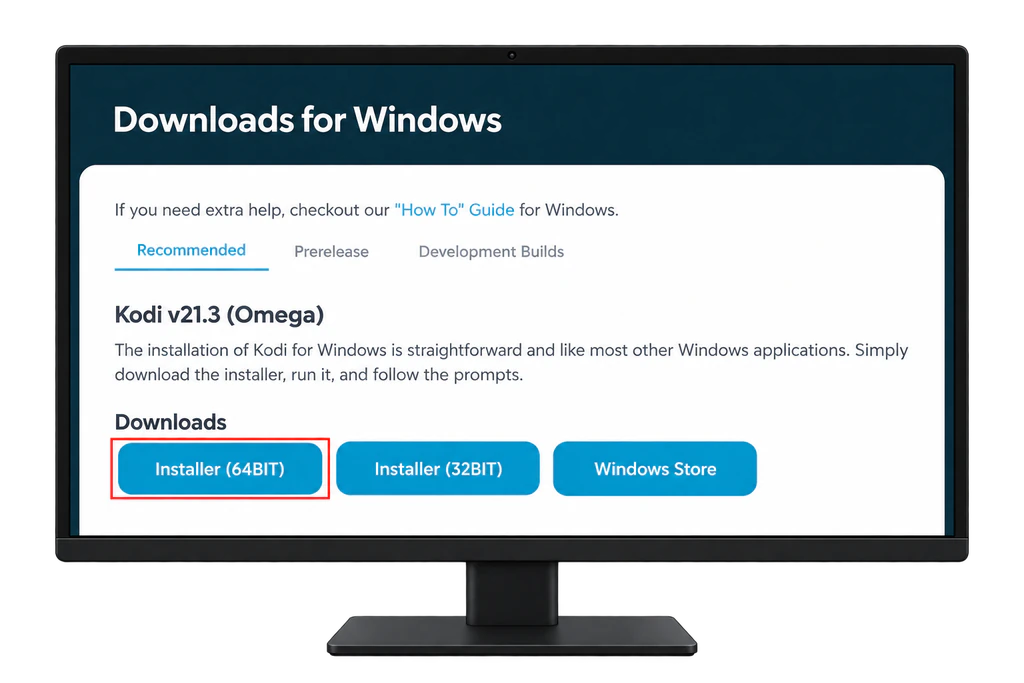
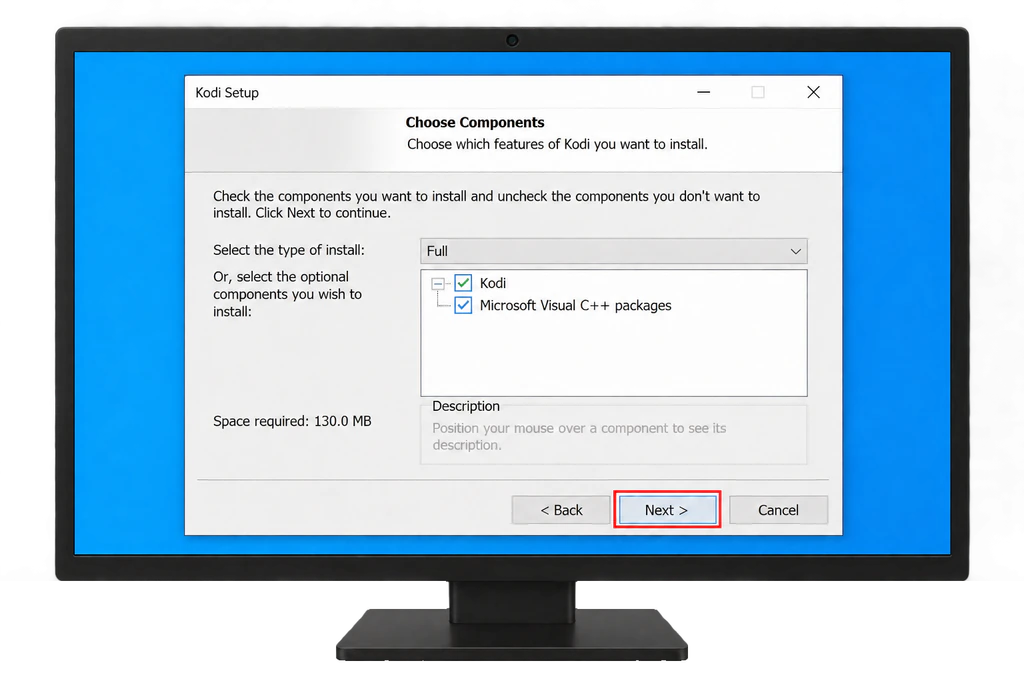
- Run the installer and accept the defaults. If SmartScreen shows a warning, check that the file came from kodi.tv, then continue.
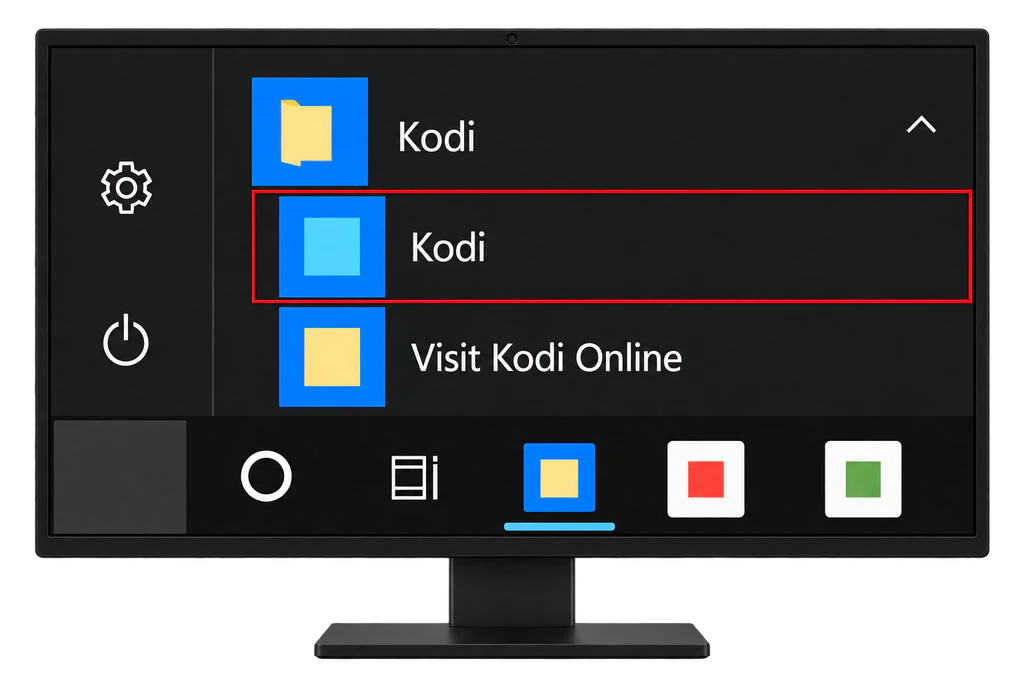
- Open Kodi from the Start menu.
Type kodi.tv into the address bar yourself rather than clicking a sponsored search result, which may lead to a copycat site.
4. Add Your Playlist to Kodi
- In Kodi, select the gear icon to open Settings, then Add-ons.
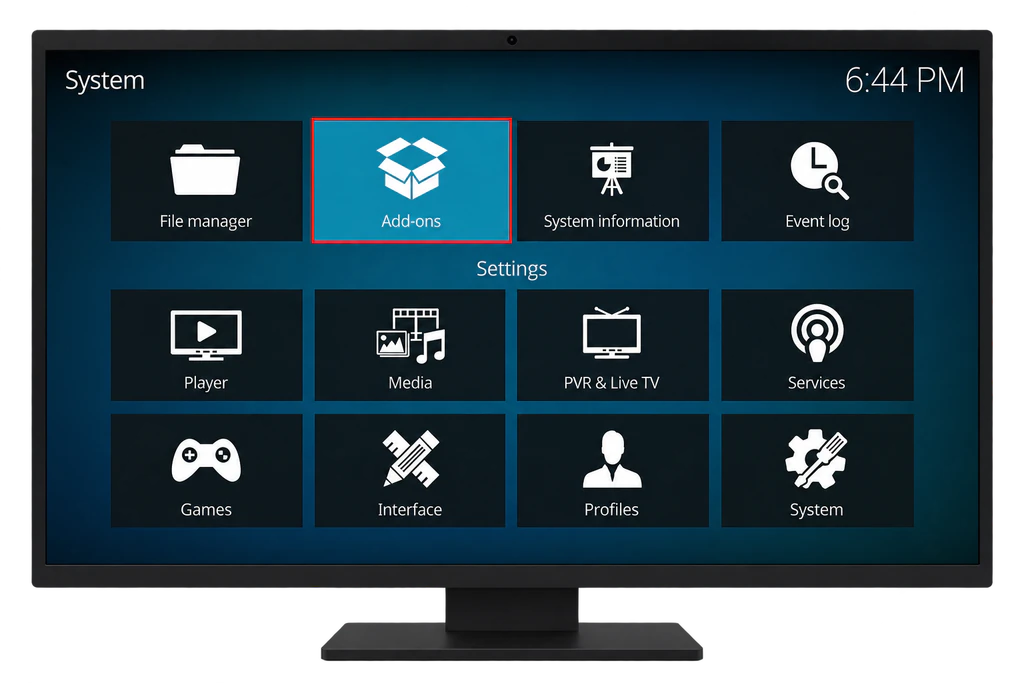
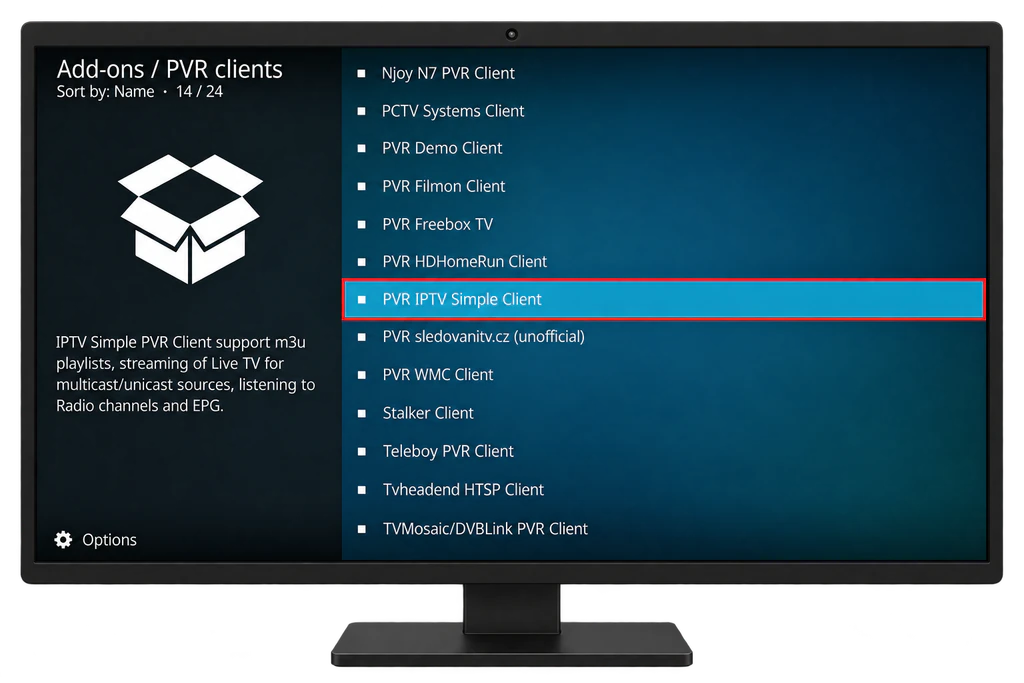
- Select My add-ons > PVR clients > PVR IPTV Simple Client. If it is not listed there, use Install from repository > PVR clients instead and install it.
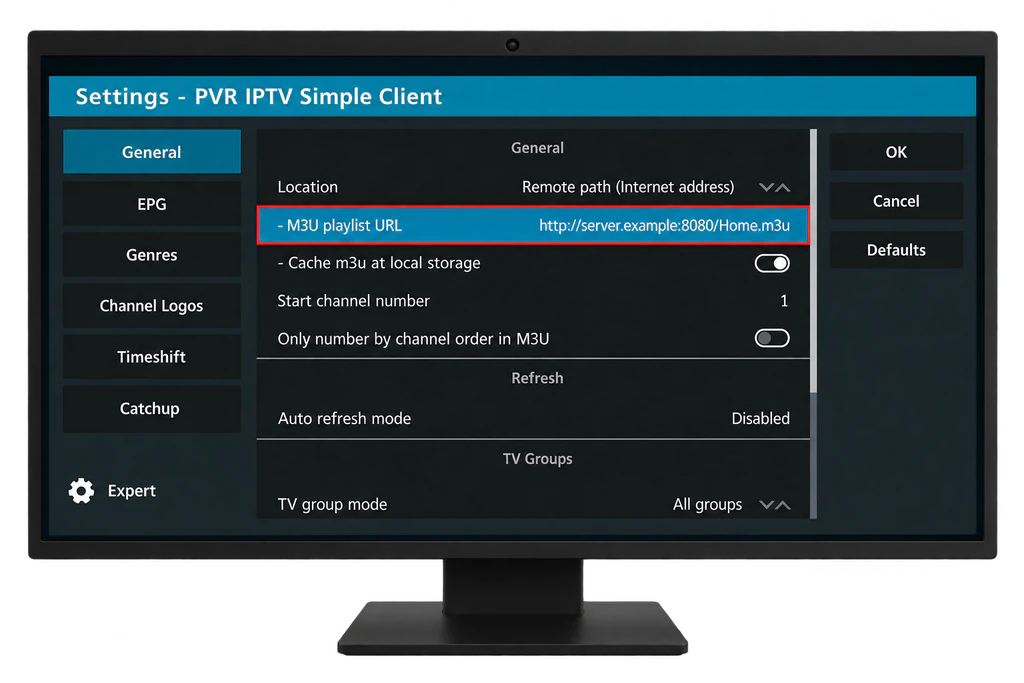
- Select Configure. Under General, set Location to Remote path and paste your link into M3U play list URL.
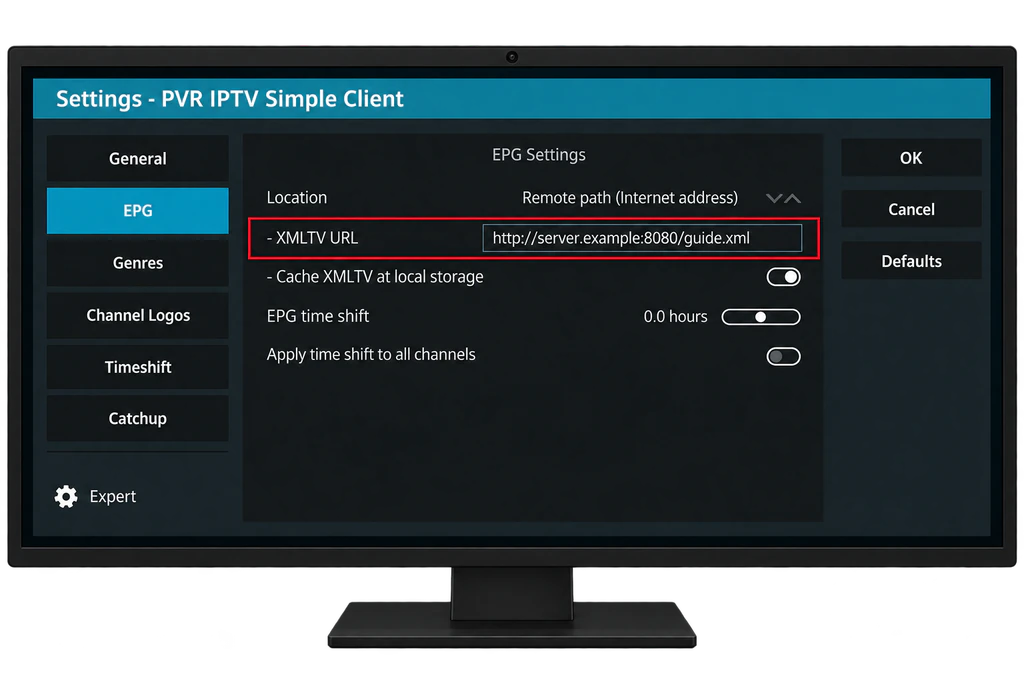
- Open the EPG settings, set Location to Remote path and paste your guide link into XMLTV URL.
- Select OK, then Enable.
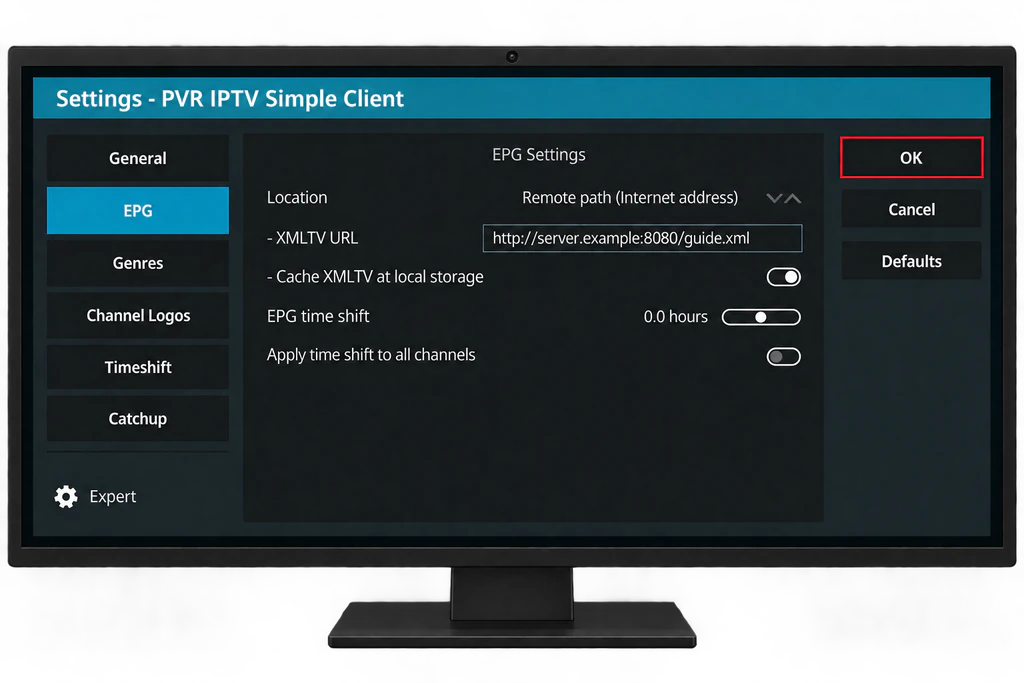
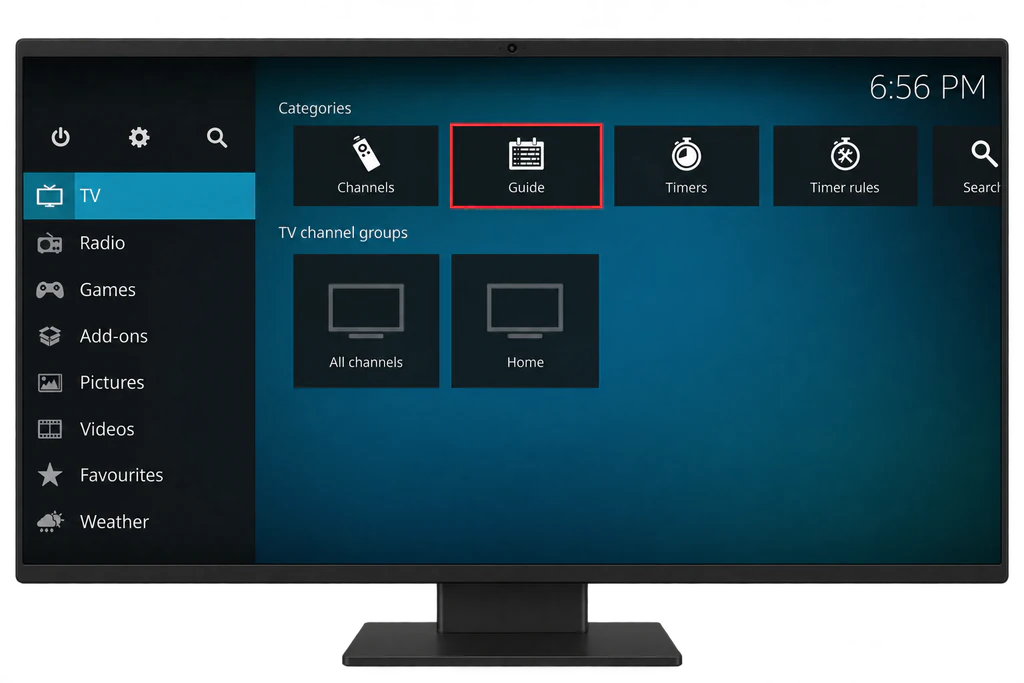
- Restart Kodi, then open TV from the main menu. Your channels appear, and the Guide tab shows what is on.
To add a second provider, or keep a trial next to an existing plan, open the add-on’s Configure menu and choose Add add-on configuration. Only install add-ons from Kodi’s official repository: the unofficial ones that promise free channels are a security risk as well as a legal one.
5. Test Your Link in VLC
VLC is the fastest way to find out whether a problem is your link or your player.
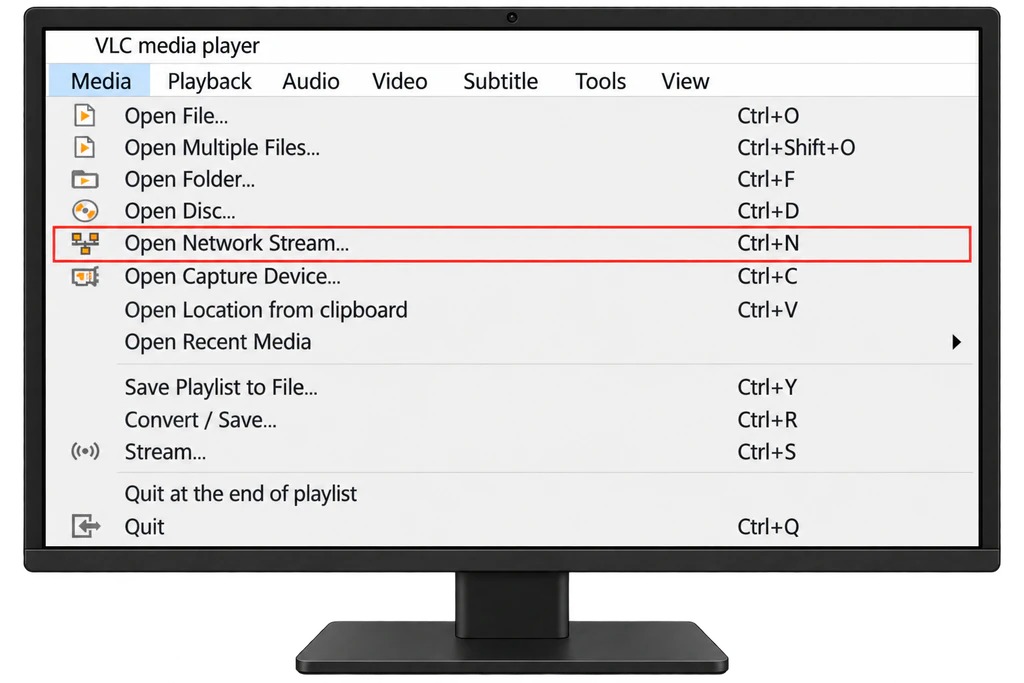
- Open VLC and press Ctrl + N, or choose Media > Open Network Stream.
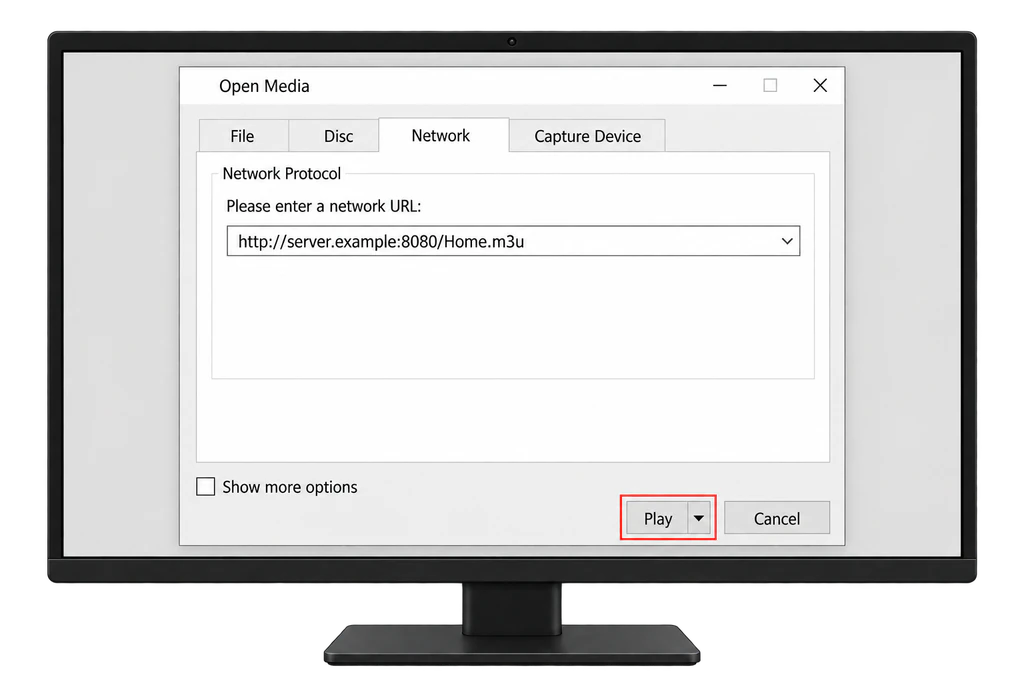
- Paste your M3U link and select Play.
- Press Ctrl + L to open the playlist and browse the channels.
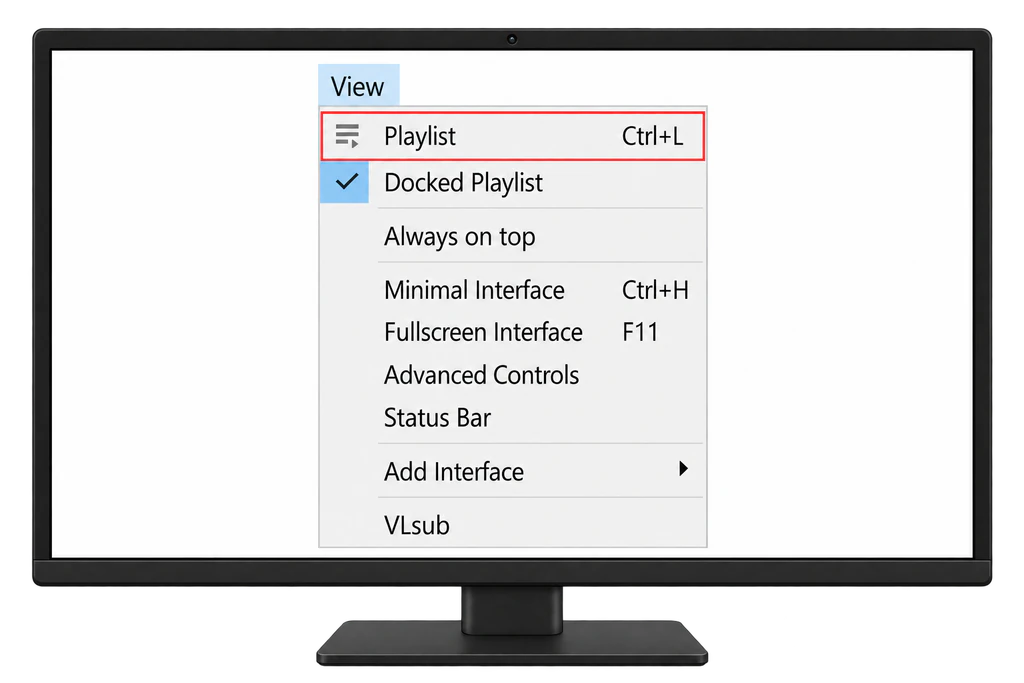
If a channel plays in VLC but not in Kodi, the problem is Kodi’s settings. If it fails in both, the link or the account is the problem.
6. Watch on Your TV From the PC
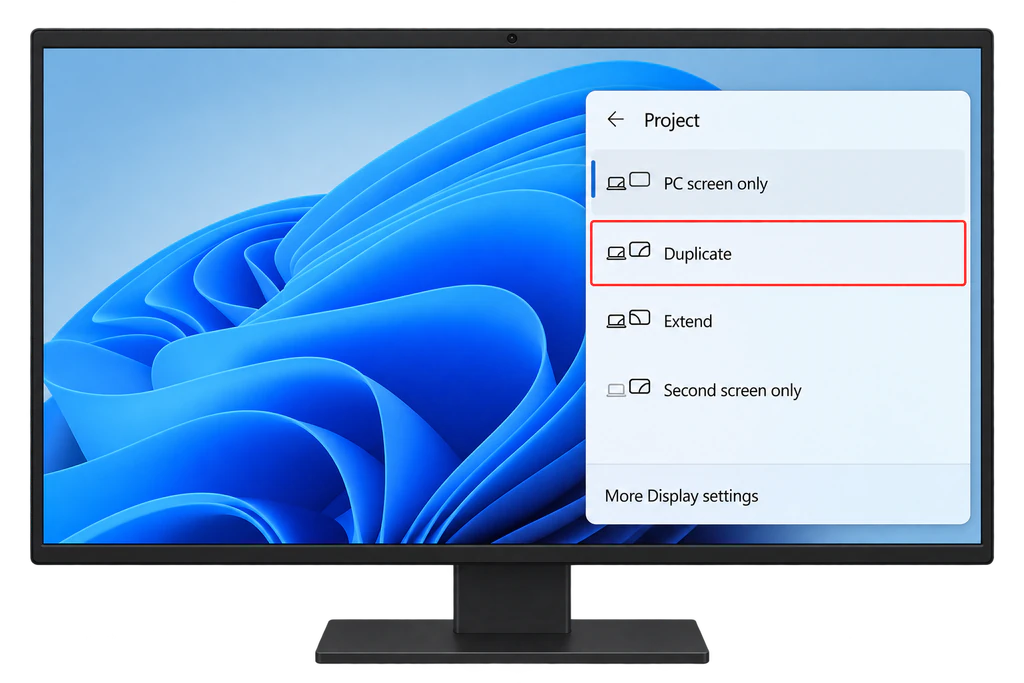
- HDMI cable: the steadiest option. Connect the PC to the TV, press Windows + P and choose Duplicate or Extend. With Extend, a laptop can show the guide while the TV shows the channel.
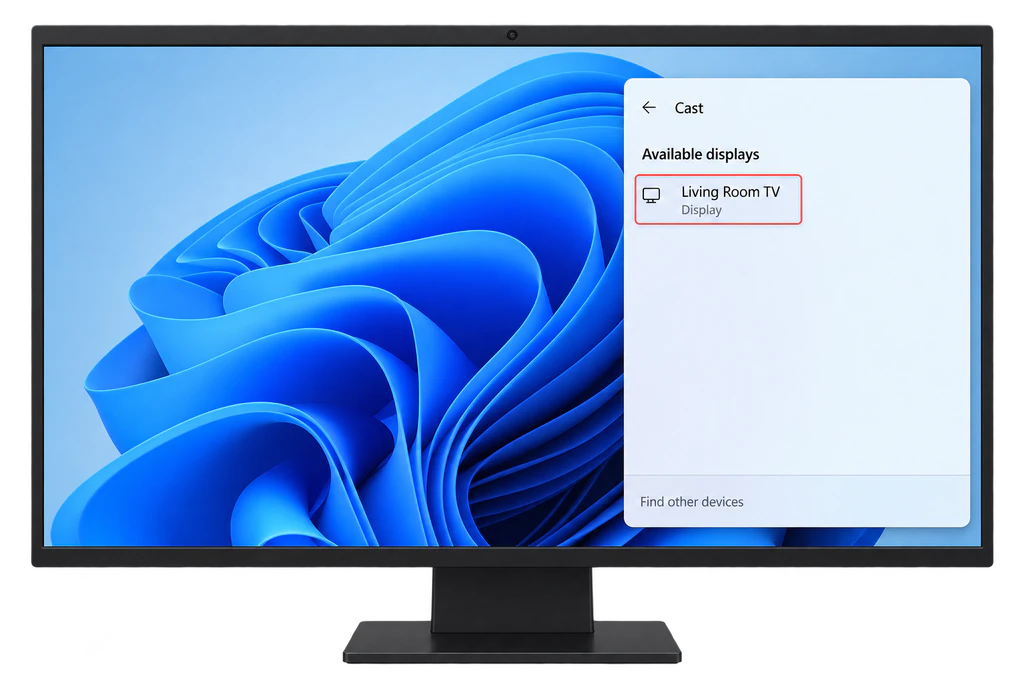
- Wireless display: press Windows + K and choose your TV. It only works when both the TV and the PC’s Wi-Fi support it, as Microsoft’s screen mirroring guide explains.
- A device on the TV instead: for watching every night, a stick on the TV is simpler than a PC. See our Firestick guide or the Android TV guide.
7. Guide, Favourites and Performance
- Refresh the guide when listings look stale: in Kodi’s TV settings, clear the guide data and let it reload.
- Wrong programme times: check the Windows date and time zone first. A laptop that moved between provinces may still be on the old zone.
- Favourites: in Kodi, open a channel’s context menu (right click) and add it to favourites, or create a channel group of the ones you watch.
- Laptop power: plug in the charger and set the power mode to Balanced or Best performance, since battery saving slows video decoding.
- 4K channels in HEVC: Kodi and VLC bring their own decoders. Some Store apps need Microsoft’s HEVC Video Extensions, a small paid add-on on most PCs.
8. Fix Common Windows Problems
Kodi shows no channels
Open the add-on’s Configure menu and check that Location is Remote path and that the whole M3U link is pasted with nothing missing at the end. Then restart Kodi. If the same link plays in VLC, the account is fine.
The guide is empty
Check the XMLTV URL in the EPG settings and give Kodi a few minutes after restarting: a large guide takes time to download the first time.
Buffering or stutter
Switch to Ethernet or 5 GHz Wi-Fi, restart the router, and update the graphics driver before anything else. If it continues, our checklist for IPTV that stops working tells you within five minutes whether the problem is the PC, your network or the service.
Sound out of sync
In VLC, use Tools > Track Synchronization to shift the audio in small steps. In Kodi, open the audio settings during playback and adjust the audio offset.
Login rejected everywhere
Build or copy the M3U link again from your email. If it fails in VLC as well, IPTV Support can confirm the account is active and the server address is current.
Frequently Asked Questions
Can I record live TV on Windows?
Kodi’s IPTV Simple Client plays channels and the guide but does not record on its own. Recording needs a separate backend, which is more than most households need.
Does Kodi work on Windows on ARM laptops?
Kodi publishes builds for different Windows versions on its download page. Check the list there for your processor before installing.
Can I watch IPTV on a Windows tablet?
Yes. Kodi and VLC both run on Windows tablets, and Kodi’s menus work with touch.
Do I need to keep the PC on for IPTV on my TV?
Only when the PC itself is playing to the TV. A stick or smart TV app on the TV works without the computer.
Can I use IPTV on a Mac too?
Yes. The same links work on a Mac, which our Mac IPTV guide covers.
Is Kodi legal?
Yes. Kodi is free, open source software, and its official add-ons are legal. Whether the channels are licensed depends on the provider behind your link, as our post on whether IPTV is legal explains.
Do I need a VPN for IPTV on Windows?
No. A VPN is optional, and our post on whether you need a VPN for IPTV explains the few cases where it helps.
Conclusion
On Windows, Kodi with the PVR IPTV Simple Client gives you a proper TV guide from your M3U link, and VLC tells you in seconds whether a problem is the link or the player. Keep both installed: when something stops working, paste the link into VLC first, because that one test tells you whether to fix Kodi or contact your provider. If you are still choosing a service, an IPTV free trial gives you a link to try both before you pay.