
On this page
On this page
Jump to a section
You install IPTV on a Firestick by sideloading a player such as IPTV Smarters Pro with the free Downloader app, then logging in with the Xtream Codes details from your provider. The whole job takes about 15 minutes on a Fire TV Stick 4K Plus, 4K Max or Fire TV Cube, and the login that fills the player with channels and a TV guide comes from an IPTV Canada plan. Newer sticks that run Amazon’s Vega OS cannot sideload at all, so this guide starts by showing you how to tell which kind you own.
1. How IPTV Works on a Firestick
IPTV on a Firestick works through a player app that streams live channels, the program guide and on-demand video from your provider’s server over your internet connection. The stick decodes the video and puts it on the screen. Everything you watch comes from the server your login points to.
Most Fire TV devices run Fire OS, Amazon’s version of Android. Fire OS lets you install apps from outside the Amazon Appstore, a process called sideloading, and that is how nearly every Firestick owner gets popular IPTV players that Amazon does not list.
Amazon has started moving its cheapest sticks to Vega OS, a Linux-based system that does not run Android apps. At the time of writing, two sticks run it:
- Fire TV Stick 4K Select (2025)
- Fire TV Stick HD, 2nd generation (2026, with Wi-Fi 6 and “Fire TV” printed on the stick)
On a Vega OS stick you can only install what the Appstore offers. The Fire TV Stick 4K Plus, Fire TV Stick 4K Max, Fire TV Cube and TVs with Fire TV built in still run Fire OS and follow this guide as written.
2. What You Need Before You Start
You need a Fire OS device that allows sideloading, an internet connection of 25 Mbps or more, and your Xtream Codes login. Check the operating system first, because it decides which path you take.
- Open Settings from the home screen.
- Select My Fire TV (newer menus call it Device & Software).
- Select About.
- Look at the software version. A version starting with 1. means Vega OS. Anything else means Fire OS.
With that confirmed, gather the rest:
- A Fire OS device that is updated and signed in to your Amazon account.
- The HDMI extender that came in the box. It matters more than it looks (section 8).
- Your welcome email with the server URL, username and password. If you do not have a plan yet, an IPTV free trial gives you a working login to test the stick with.
- The Fire TV app on your phone. Its keyboard makes typing a server URL far less painful than the remote.
3. Which Player and Login Type to Use
For most Fire OS users, the right choice is IPTV Smarters Pro sideloaded with Downloader and signed in with Xtream Codes. It is free, the menus are built for a remote, and live TV, movies and series all sit on one dashboard.
| Option | How you get it | Best for |
|---|---|---|
| IPTV Smarters Pro | Sideload from the developer’s website with Downloader | Most people, simple layout |
| TiviMate IPTV Player | Sideload from the developer’s link | Heavy live TV viewers who want a grid guide |
| An Appstore IPTV player | Amazon Appstore search | Vega OS sticks, or anyone who prefers not to sideload |
Your provider’s login comes in one of two forms, and both work in Smarters and TiviMate:
- Xtream Codes: a server URL, a username and a password. The app pulls channels, guide data and on-demand titles automatically. This is the one to use on a TV remote.
- M3U URL: one long web address that holds the whole playlist. It works, but you may need to add a separate guide link.
If your email only lists a portal URL and asks for a MAC address, that login is meant for MAG-style boxes. Ask your provider for Xtream Codes details instead.
4. Installing Downloader and Sideloading the Player
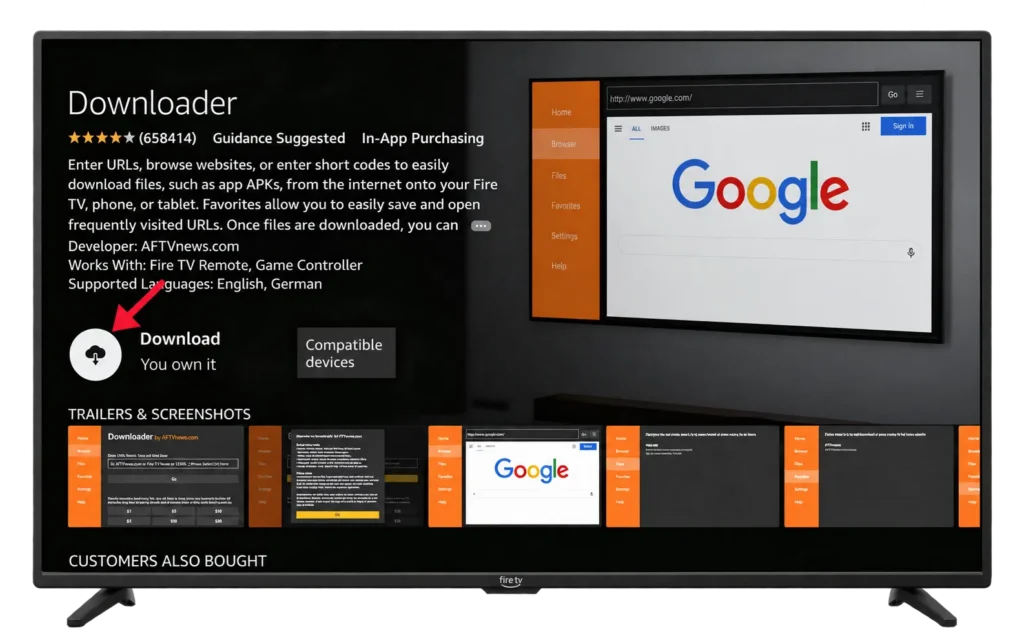
The app that makes sideloading possible is Downloader by AFTVnews, a free tool in the Amazon Appstore that fetches a file from any web address you type. You install Downloader first, give it permission to install apps, then use it to grab IPTV Smarters Pro from the developer’s official site.
Step A: Install Downloader
- Select Find (the magnifying glass) on the home screen.
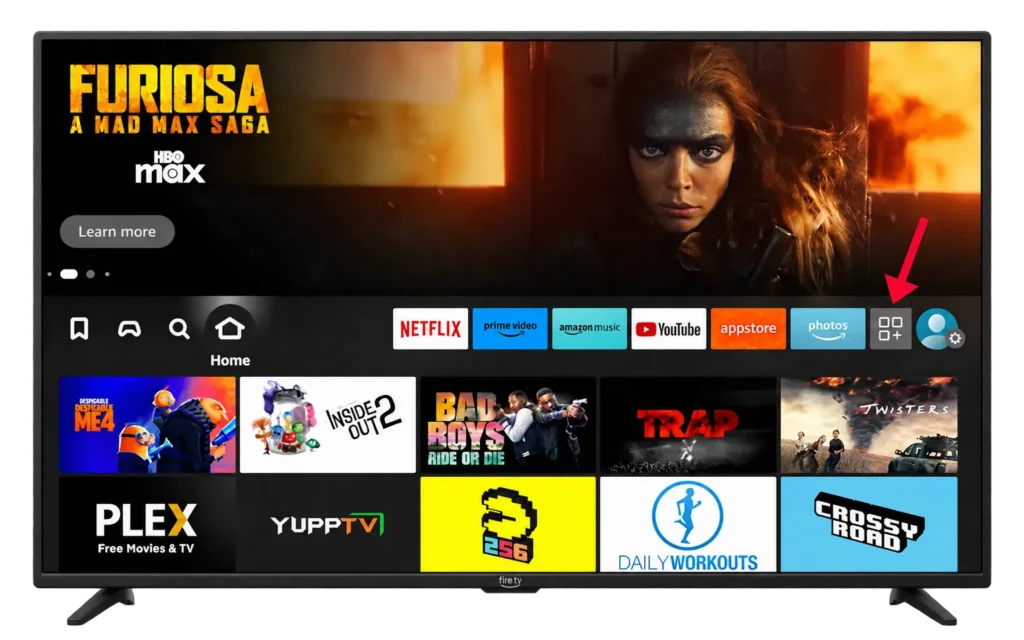
- Select Get More Apps.
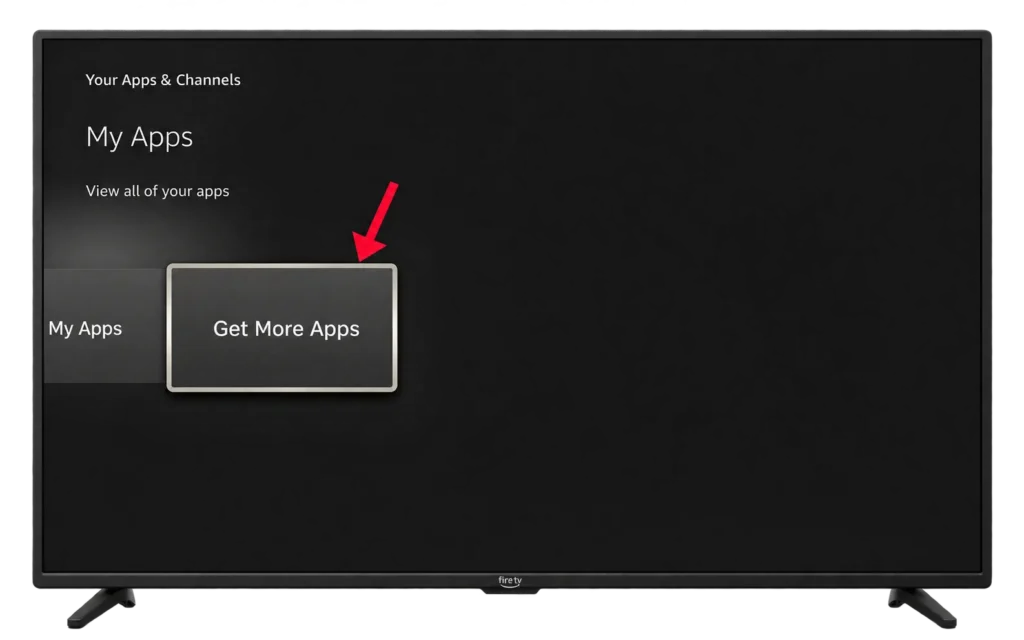
- Search for Downloader.
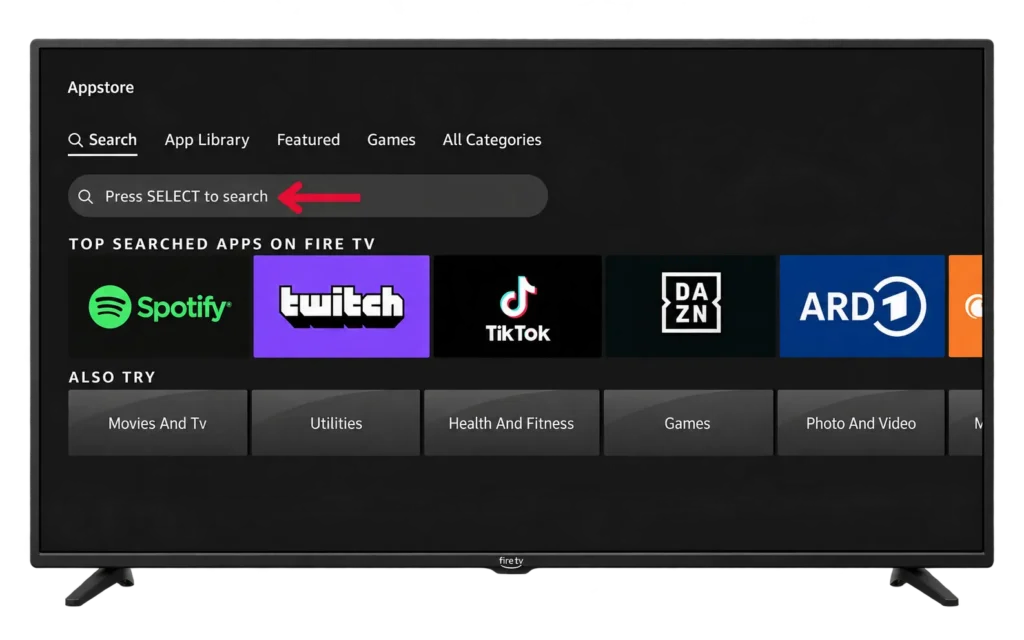
- Choose the orange Downloader app by AFTVnews.
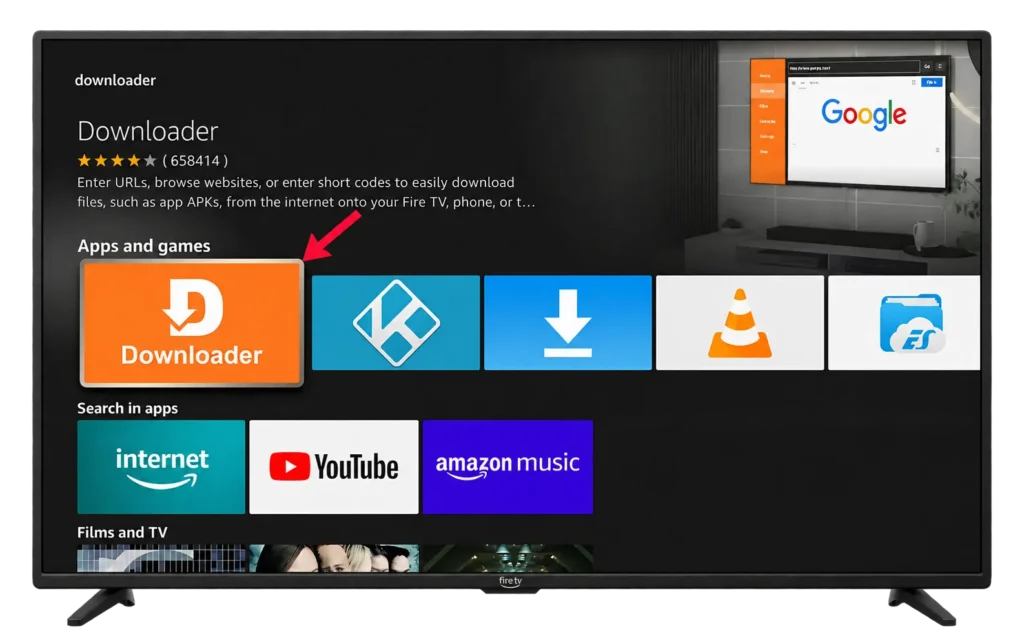
- Select Get and wait for the install to finish.
Step B: Unlock Developer Options
- Go to Settings > My Fire TV > About.
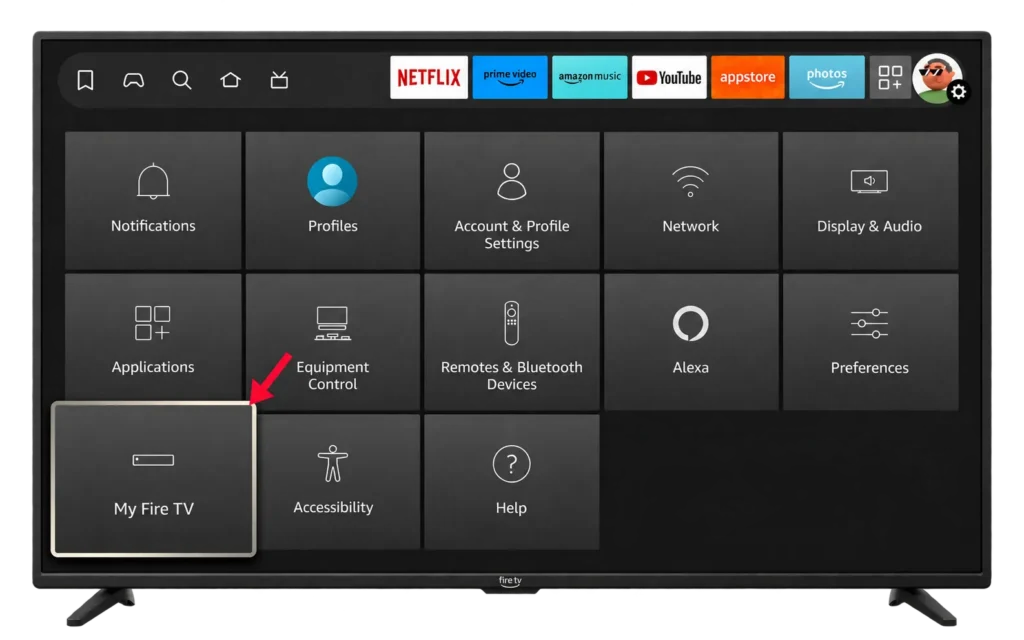
- Highlight your device name and press the select button 7 times.
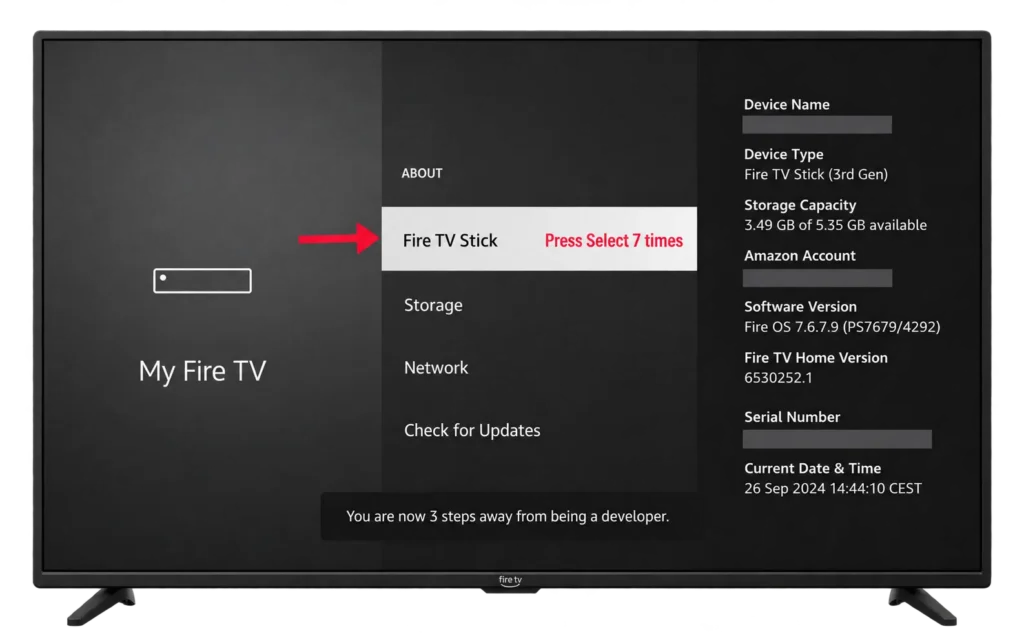
- Watch for the message that says you are now a developer.
- Press Back once. Developer Options now appears in the My Fire TV menu.
Step C: Allow Downloader to install apps
- Open Settings > My Fire TV > Developer Options.
- Select Install unknown apps.
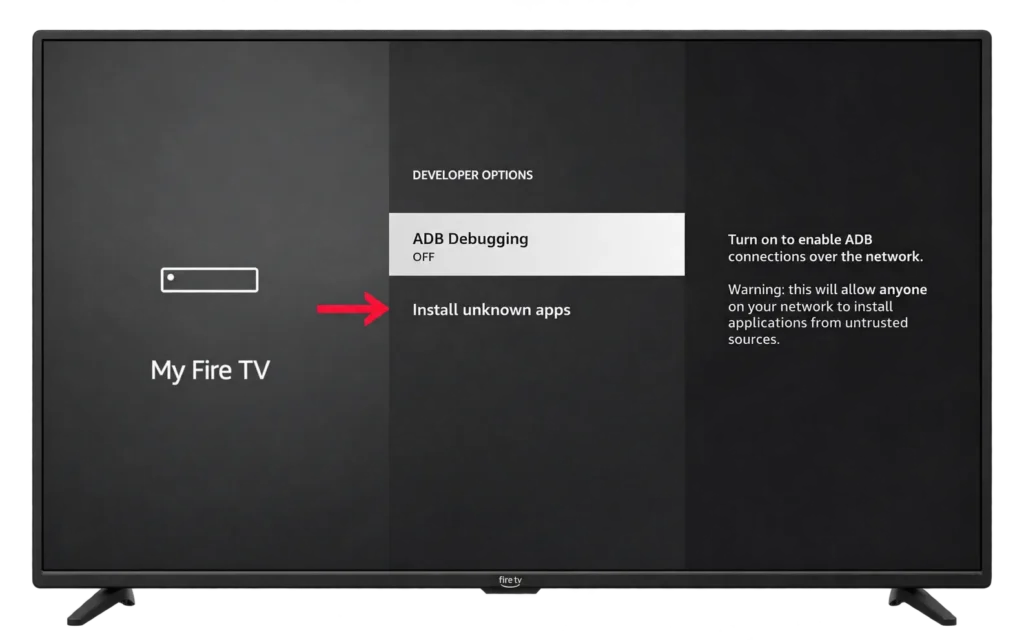
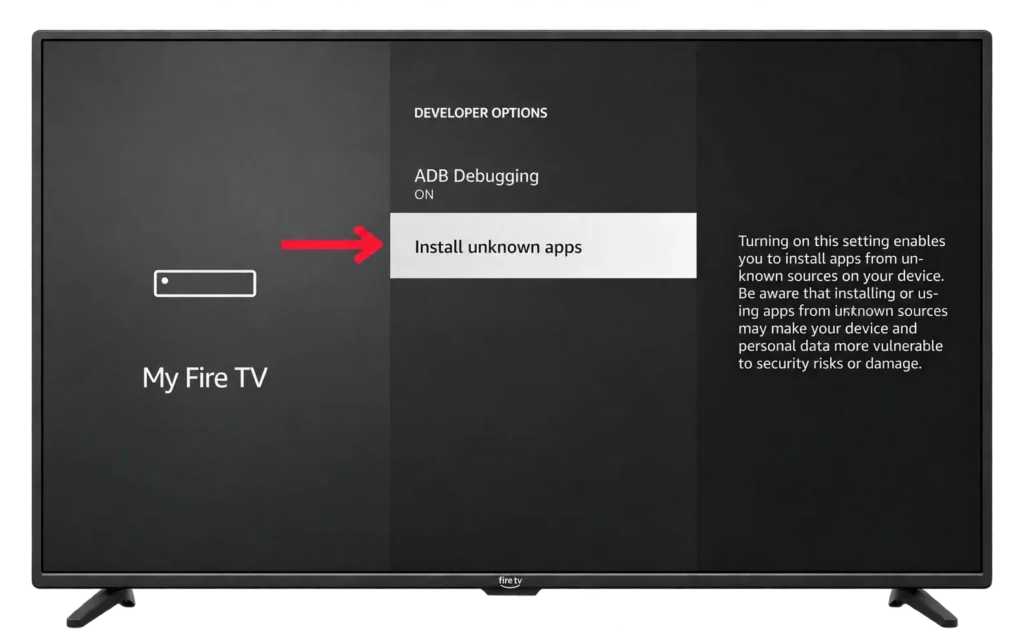
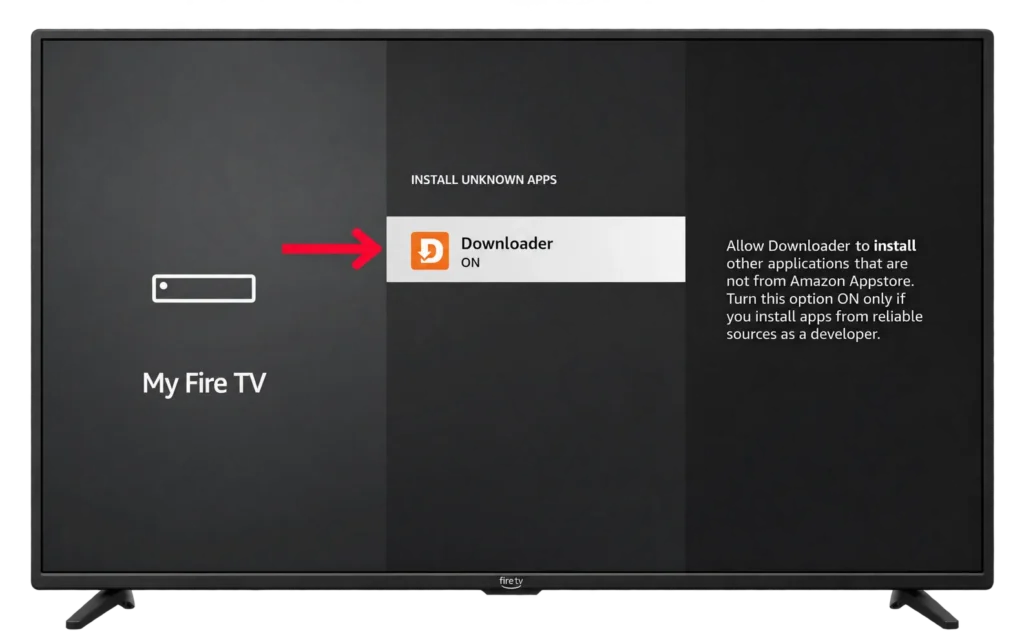
- Set Downloader to On. Older Fire OS versions show one “Apps from Unknown Sources” switch instead.
Step D: Download and install IPTV Smarters Pro
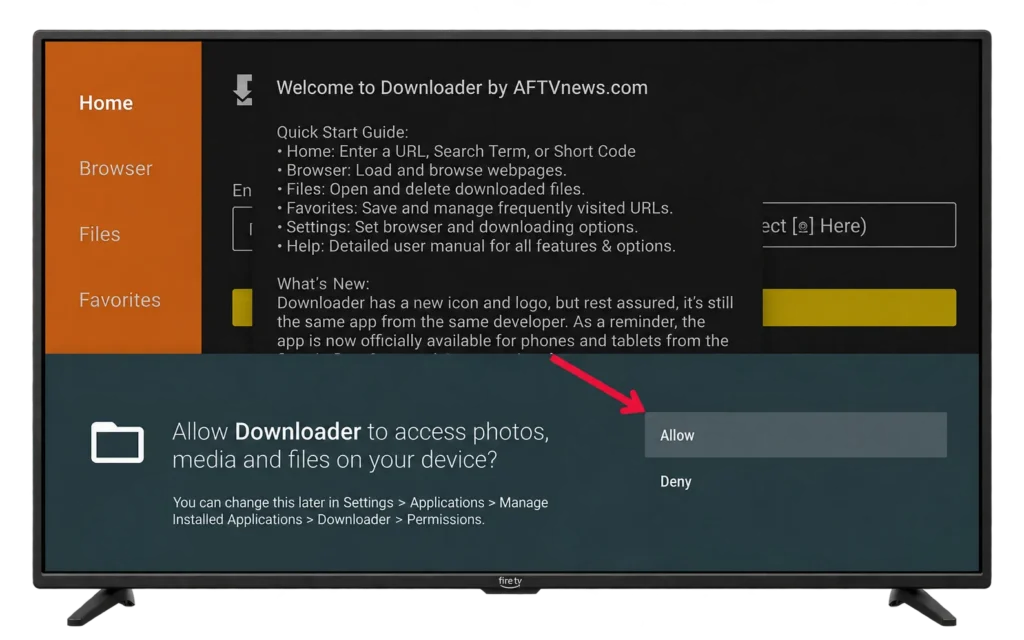
- Open Downloader and allow file access if it asks.
- In the address box, type the IPTV Smarters developer’s official website. Enter one of these: (Downloader code: 6468112 / or the APK link: https://www.iptvsmarters.com/iptv-smarters-5.0.apk)
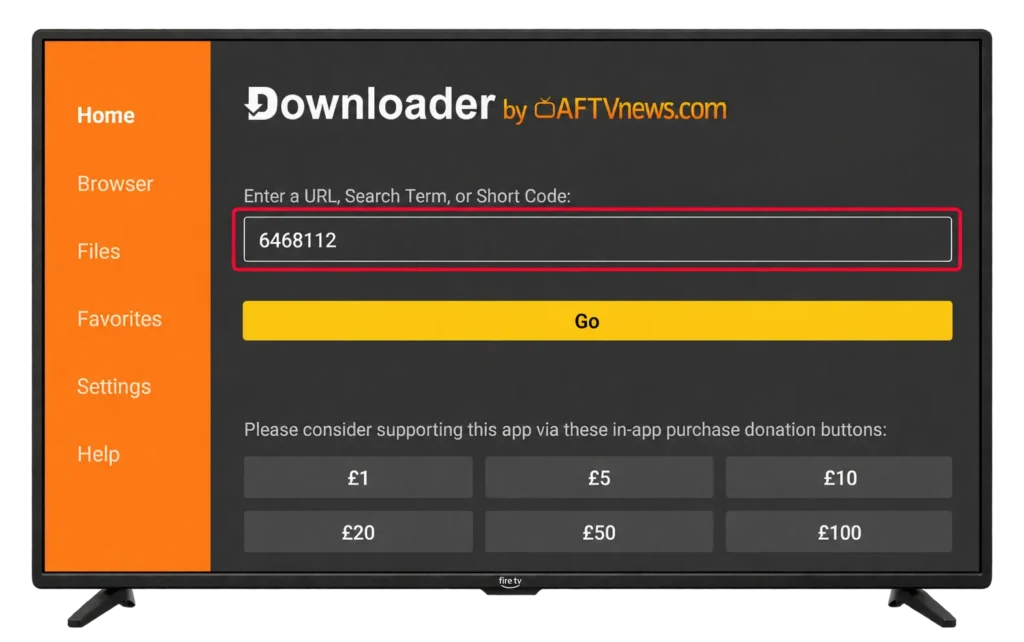
- Select the Fire TV or Android TV download on the official page.
- When the download finishes, select Install.
- Choose Done, then let Downloader delete the installer to free up space.
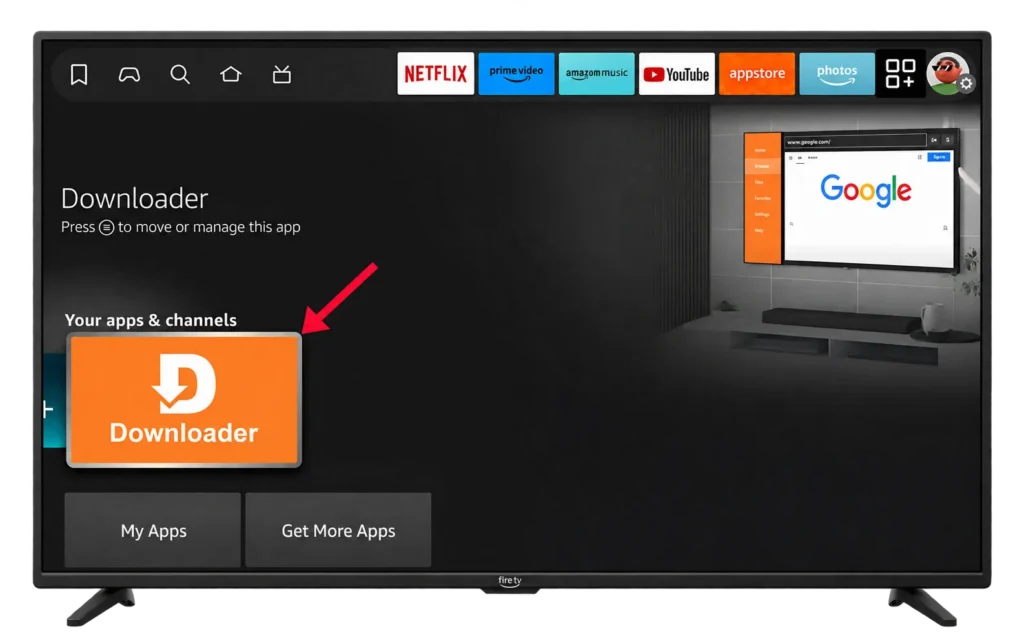
- Open the app from Your Apps & Channels. Press the Options button (three lines) on its icon and choose Move to bring it to the front row.
Two things to watch for. Lookalike sites copy the Smarters name and sell “premium” modified copies. Modified APKs are the main way malware reaches a Firestick, so leave any page that asks for payment. And the whole sideloading process is normal on Fire OS. If someone offers to sell you a “jailbroken” Firestick, they are charging for the steps you just did for free.
Vega OS owners: search the Appstore for “IPTV”, pick a player that lists Xtream Codes or M3U support, and install it like any other app.
5. Logging In With Xtream Codes
Xtream Codes is the login that connects IPTV Smarters Pro in one step, because a single sign-in loads channels, the guide and the on-demand library together.
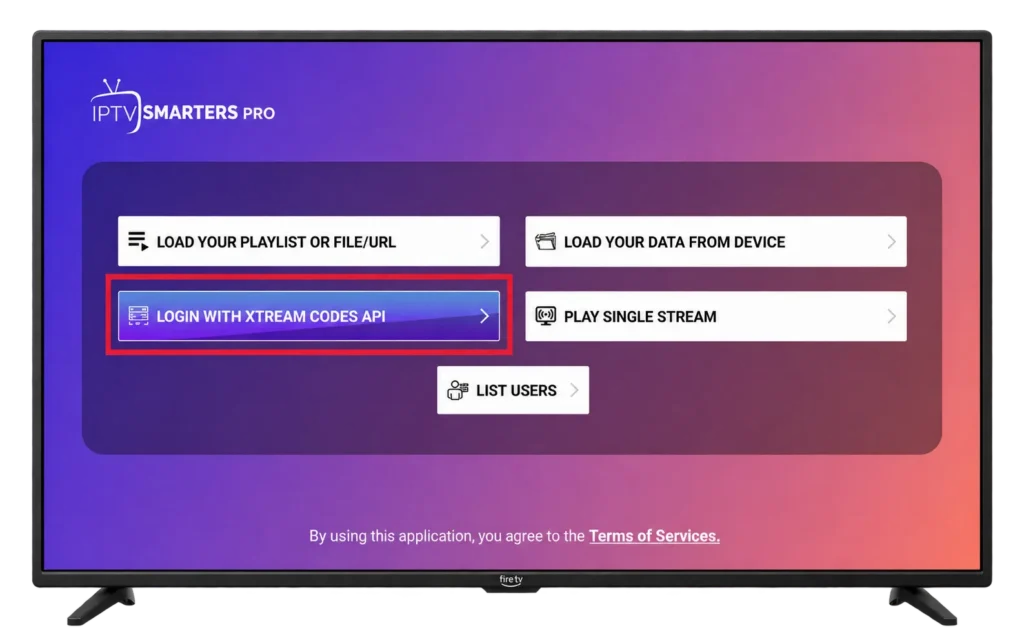
- Open IPTV Smarters Pro and accept the terms screen.
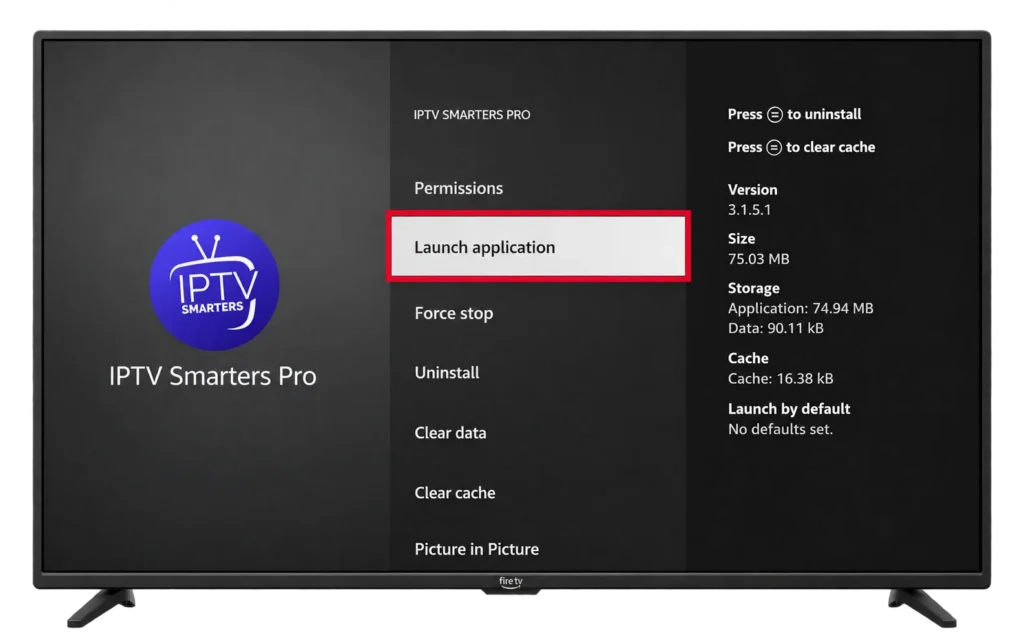
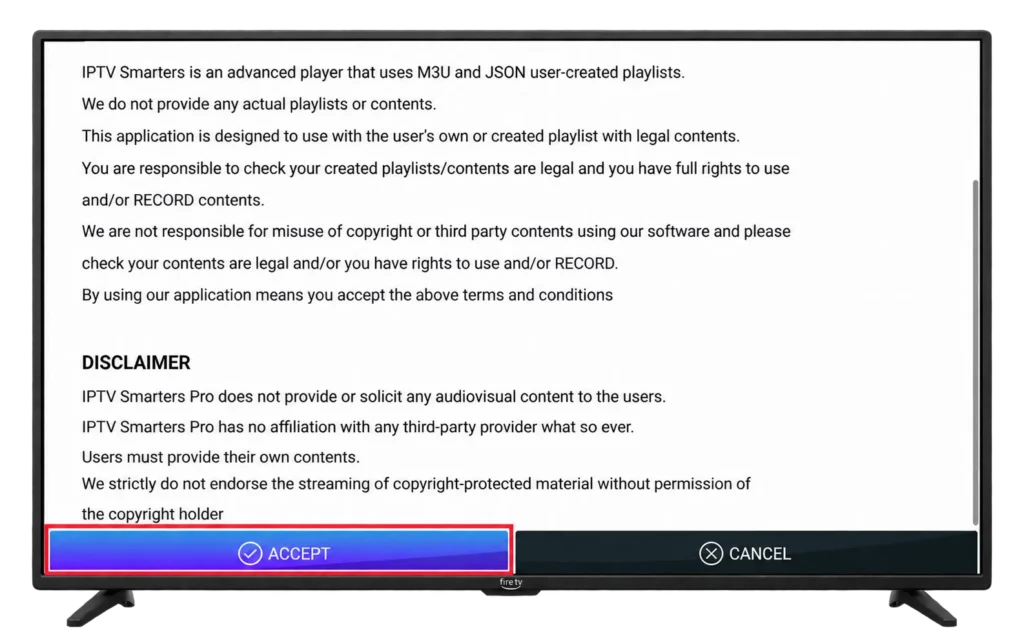
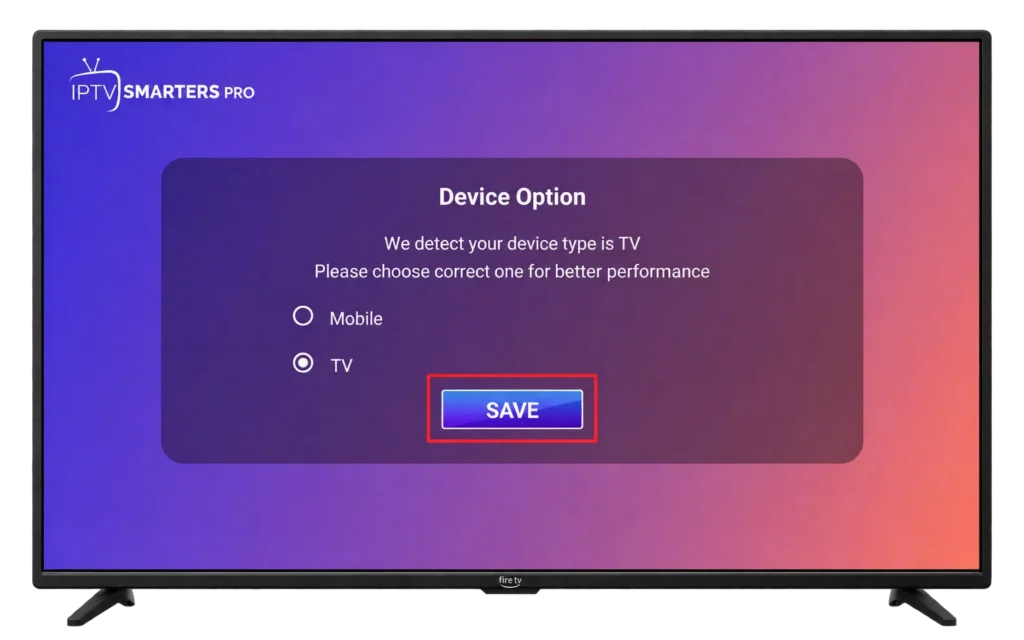
- Select Login with Xtream Codes API.
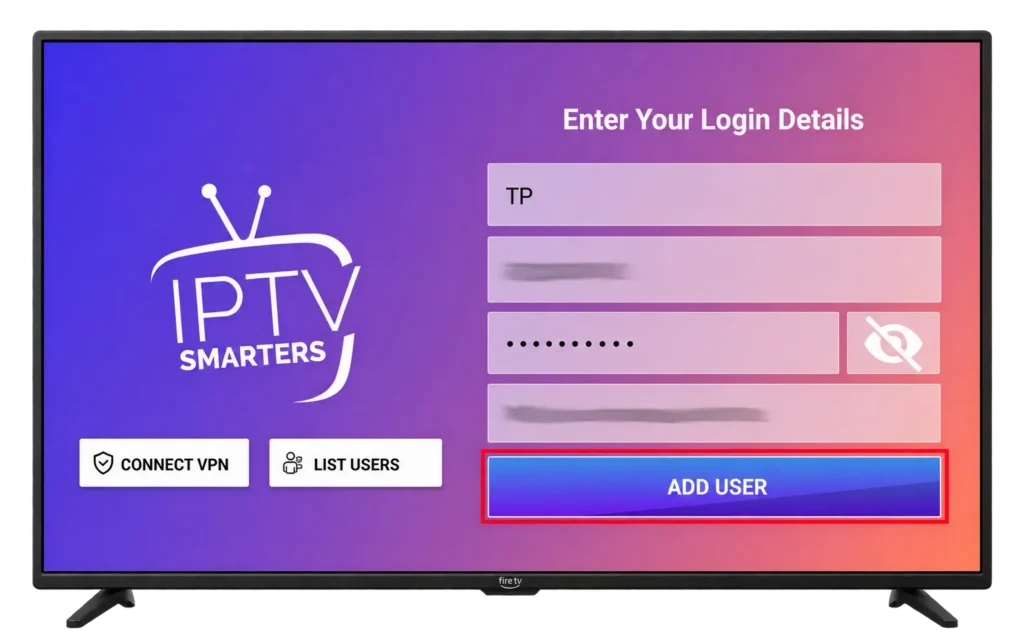
- Any Name: type a label for this profile, such as “Living room”.
- Username: enter it exactly as written. Capital letters matter.
- Password: also case-sensitive. A zero and a capital O look alike on a TV screen.
- Server URL: include http:// or https:// and the port number at the end if your email shows one.
- Select Add User.
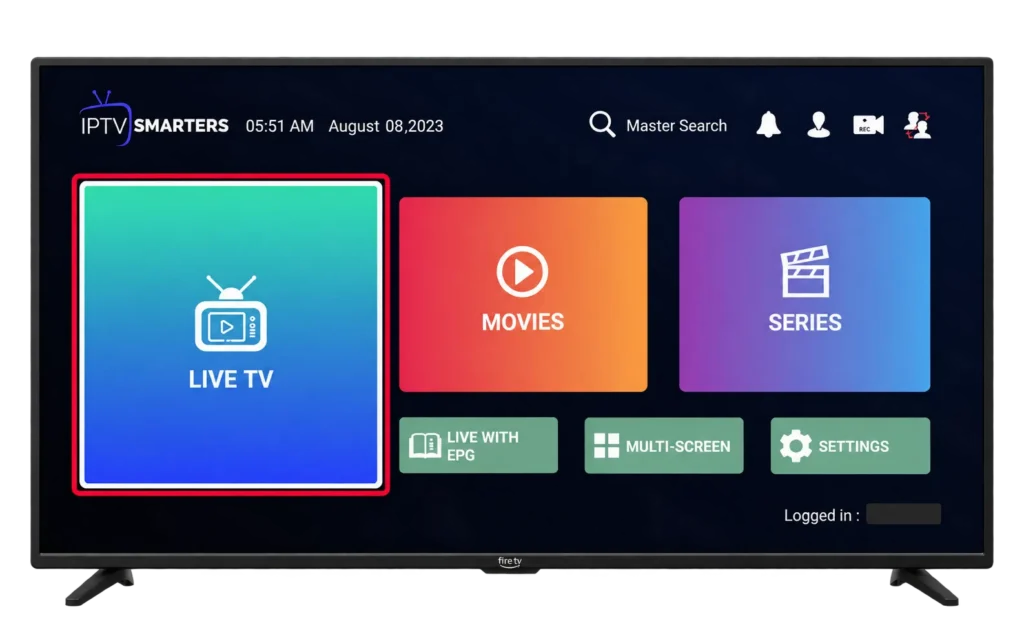
- Wait a minute or two while the app downloads the channel list and guide.
- Choose Live TV, Movies or Series from the dashboard.
If your provider only gave you an M3U link, choose Load Your Playlist or File/URL instead, pick M3U URL as the type, and type the full address. One wrong character stops the playlist loading.
Most “invalid login” messages come from a missing port, an extra space at the end of the password, or a wrong capital letter. Retype the details before you assume the account is the problem.
6. Setting Up the Guide and Favourites
The guide, time zone and playlist tools in IPTV Smarters Pro live under the Settings gear on the main dashboard. With Xtream Codes, guide data normally loads on its own, so most of the work here is tidying.
- Refresh EPG when listings look stale. Do this after any long stretch with the stick unplugged.
- Time shift: if programs show an hour early or late, adjust the EPG time shift to match Eastern, Central, Mountain, Pacific, Atlantic or Newfoundland time.
- Favourites: long-press the select button on a channel and choose Add to Favourites. They get their own group at the top of Live TV, which saves a lot of scrolling with a remote.
- Hide categories you never open. Smarters loads faster with fewer groups, and this matters on the smaller memory of a basic stick.
- Profiles: Smarters can hold several logins. That is handy when you run a trial next to an existing plan, but delete profiles you no longer use.
TiviMate users find the same controls under Settings > EPG and Settings > Playlists, with a full grid guide that many sports viewers prefer.
7. If Smarters Does Not Work: TiviMate and Other Fallbacks
The first thing to try when IPTV Smarters Pro misbehaves is TiviMate IPTV Player, sideloaded the same way with a link from its developer. It reads the same Xtream Codes or M3U details, and if your channels play in TiviMate, the problem was the app rather than your account. TiviMate’s paid upgrade is bought through the developer’s companion app on an Android phone, not on the stick.
Beyond that, in order of effort:
- Clear and reinstall. Go to Settings > Applications > Manage Installed Applications, select the player, clear its cache and data, then reinstall.
- Try an Appstore player. Listings change often, so read recent reviews and check for Xtream Codes support before installing.
- Use a different device. The same login works on an Android TV or Google TV device, where TiviMate installs from Google Play with no sideloading. Owners of a Samsung or LG smart TV can sometimes skip the stick entirely. Every device we support has its own walkthrough in our IPTV setup guides.
Casting from a phone is not a real fallback on Fire TV. There is no Google Cast support, and screen mirroring only works with some Android phones.
8. Getting the Best Picture Out of a Stick
Plan on 25 Mbps as the minimum for smooth IPTV on a Firestick, with more if other screens in the house stream at the same time. HD channels use roughly 10 Mbps each and 4K channels about 25 Mbps, so a two-TV household watching a 4K game and an HD movie wants 50 Mbps of headroom in the evening, when Canadian cable and fibre networks are busiest.
Reception. A stick plugged straight into the back of a TV sits behind a sheet of metal that blocks Wi-Fi. Use the HDMI extender from the box to move it into the open. Sticks with weak signal will buffer no matter how fast your plan is.
Wired if you can. The Fire TV Cube has an Ethernet port. Sticks can use Amazon’s Ethernet adapter, which plugs into the power port and gives the stick a cable. It is the single biggest upgrade for live sports.
5 GHz over 2.4 GHz. If you must stay wireless, join your router’s 5 GHz network. It carries more data and suffers less interference from neighbours.
Display settings. Under Settings > Display & Sounds > Display, set the resolution to Auto and turn on Match Original Frame Rate if your model has it. Hockey and football look smoother when the TV follows the broadcast frame rate. A 4K stick on a 1080p TV still plays HD fine; you need a 4K HDR TV to see the difference.
Several sticks. Each Fire TV streaming at the same time uses one of the connections on your plan. Check the connection count on your IPTV Subscription before adding a second stick to the bedroom, and keep an eye on data caps if your internet plan has one, since 4K uses about 7 GB per hour.
9. Fixing Buffering, Crashes and Login Errors
The primary fix for buffering and freezes is to restart the Firestick and the router, then move the stick to Ethernet or 5 GHz Wi-Fi. Restarting clears the stick’s memory, which fills up over days of use, and most stutter on a Fire TV traces back to Wi-Fi rather than the stream.
| Symptom | Likely cause | Fix |
|---|---|---|
| Buffering only in the evening | Neighbourhood congestion or weak Wi-Fi | Ethernet adapter, HDMI extender, lower the stream quality after 7 p.m. |
| App crashes on launch | Low storage or a corrupt cache | Clear cache and data, delete unused apps, reinstall |
| Sound out of sync | Audio format mismatch | Change the audio decoder in the player, set TV sound to PCM or Stereo |
| Black screen with audio | Codec not handled by the default decoder | Switch between hardware and software decoder in the player |
| Downloader missing from Install unknown apps | Menu bug on some Fire OS builds | Update Fire OS, restart, look again |
| “Invalid credentials” | Typo, missing port or expired plan | Retype every field. If it still fails, IPTV Support can confirm your plan status |
Restart the stick once a week from Settings > My Fire TV > Restart, and keep both Fire OS and the player updated. Amazon updates arrive on their own; sideloaded players do not, so check the developer’s site every few months.
VPNs on Fire TV. A VPN app encrypts traffic between the stick and the VPN server, which hides what you stream from your ISP. Some viewers turn one on when they suspect throttling during busy hours. It costs some speed, so pick a server in or near your province and test with it on and off. Using a VPN is legal in Canada. It does not change whether the content itself is licensed.
10. Legal and Practical Considerations
IPTV technology is legal in Canada, and sideloading a player app onto a Firestick you own is legal too. What the law cares about is the content: streaming or redistributing programming without authorization from the rights holders can infringe the Copyright Act. This section is general information, not legal advice.
A few realities worth knowing before you settle on a provider:
- Enforcement targets services, and sometimes viewers. The Federal Court has ordered Canadian ISPs to block unauthorized IPTV services and, more recently, unauthorized live sports streams. Under the notice-and-notice system, your ISP forwards infringement notices from rights holders to the account holder.
- “Fully loaded” sticks are a red flag. Sellers who pre-install players and a mystery subscription usually cannot tell you where the content comes from, and the subscription tends to die when they do.
- The Appstore is not a safety guarantee either. Some Appstore IPTV players are fine; others push paid upgrades or disappear after a few months. Read the reviews and the developer name.
Choose a provider that answers support tickets, states its terms clearly and does not require a modified app. Download players only from the developer’s own website.
Frequently Asked Questions
Can I install IPTV on a Fire TV Stick 4K Select or the 2026 Fire TV Stick HD?
Only with players from the Amazon Appstore. Both sticks run Vega OS, which cannot sideload Android apps, so Downloader, IPTV Smarters Pro and TiviMate are out. Search the Appstore for a player with Xtream Codes support, or choose a Fire TV Stick 4K Plus, 4K Max or Fire TV Cube if you want the full range of players.
Why can’t I find Developer Options on my Firestick?
Amazon hides it by default on newer Fire OS versions. Go to Settings > My Fire TV > About, highlight the device name and press select 7 times. The menu then appears under My Fire TV.
Is the Downloader app safe?
Yes. Downloader is a well-known free app by AFTVnews, listed in the Amazon Appstore, and it only fetches files from addresses you type in. The risk is in what you download, so only use the app developer’s official website.
Should I use Xtream Codes or M3U on a Firestick?
Xtream Codes, in almost every case. It needs three fields, loads the guide and on-demand sections on its own, and is easier to type with a remote. M3U is the fallback when a provider only supplies a playlist link.
Do I need a VPN for IPTV on a Firestick?
No. A VPN is optional. It adds privacy and may help during peak-hour slowdowns, but it costs a little speed and does not make unlicensed content legal.
Conclusion
A Fire OS stick, Downloader, a player from the developer’s official site and your Xtream Codes login are all it takes to run IPTV on a Firestick. Vega OS sticks are limited to whatever the Appstore lists.
- Check Settings > My Fire TV > About before anything else, so you know which path applies.
- Enable Downloader under Install unknown apps and download players only from official sources.
- Use Xtream Codes, refresh the guide when listings drift, and give the stick an Ethernet adapter or at least the HDMI extender.
- Restart the stick weekly.
Set everything up on a quiet afternoon, then watch a live game that evening to see how your connection holds at peak time. If you are still choosing a service, an IPTV free trial lets you run that test before you pay for anything.